Quick Start
Connect your first database to NudgeBee in 5 minutes using the Proxy Agent.
Prerequisites
- A NudgeBee account
- A database you want to connect (PostgreSQL, MySQL, etc.)
- Network access from the machine running the agent to your database
Step 1: Create a Proxy Agent in NudgeBee
- Go to Admin → Integrations → Servers in the NudgeBee UI.
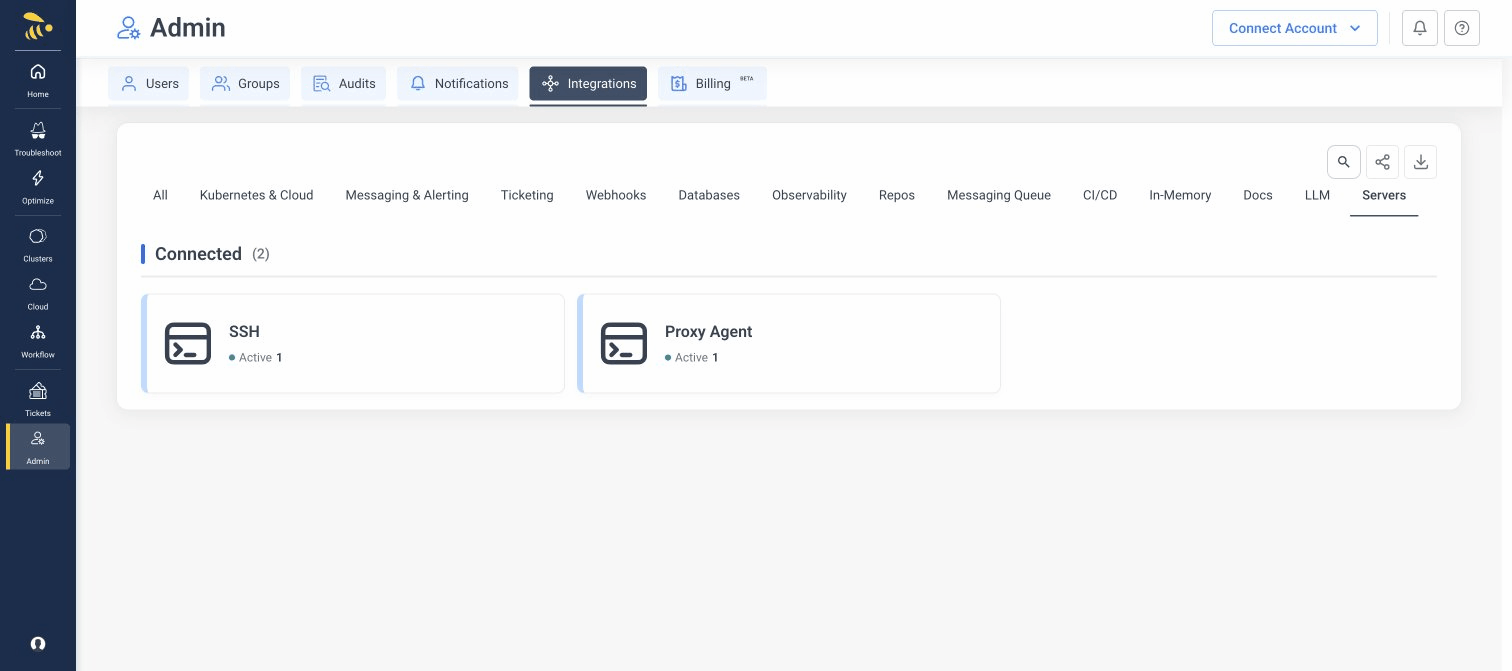
- Click the Proxy Agent card to open the Proxy Agent accounts page.
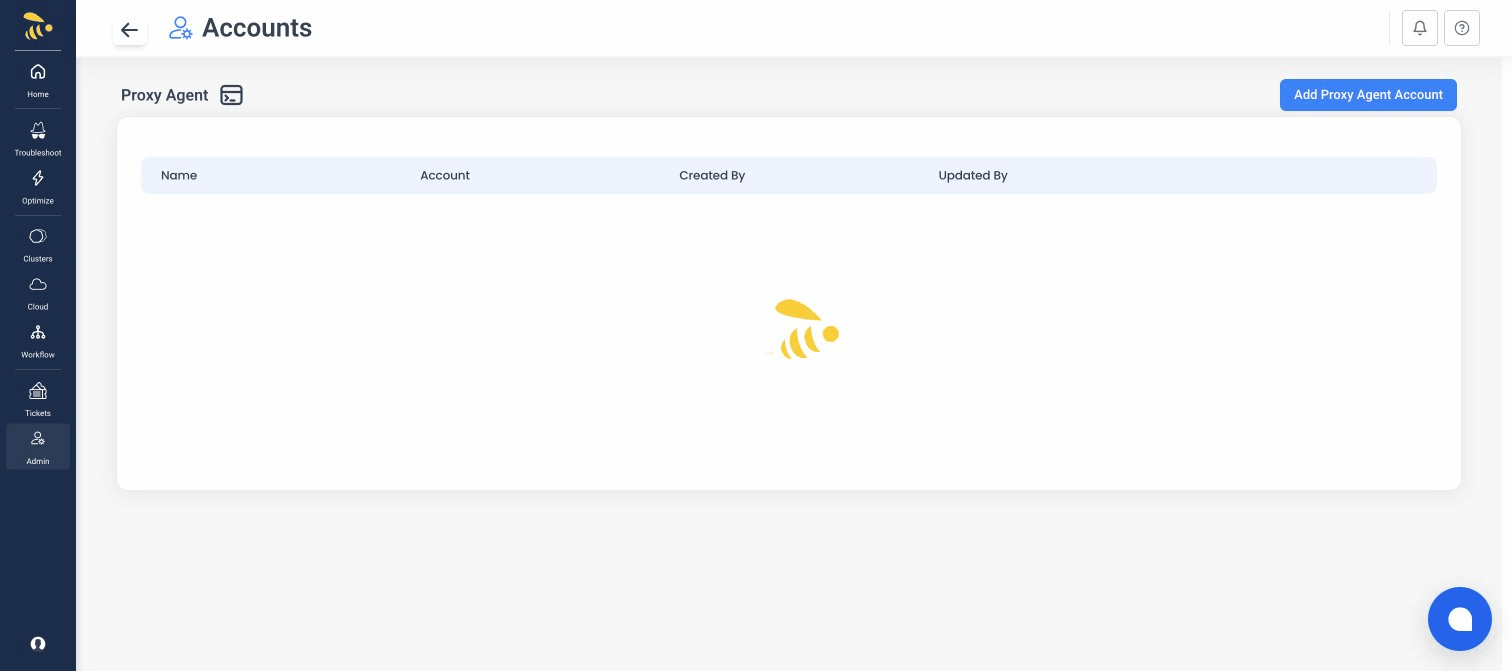
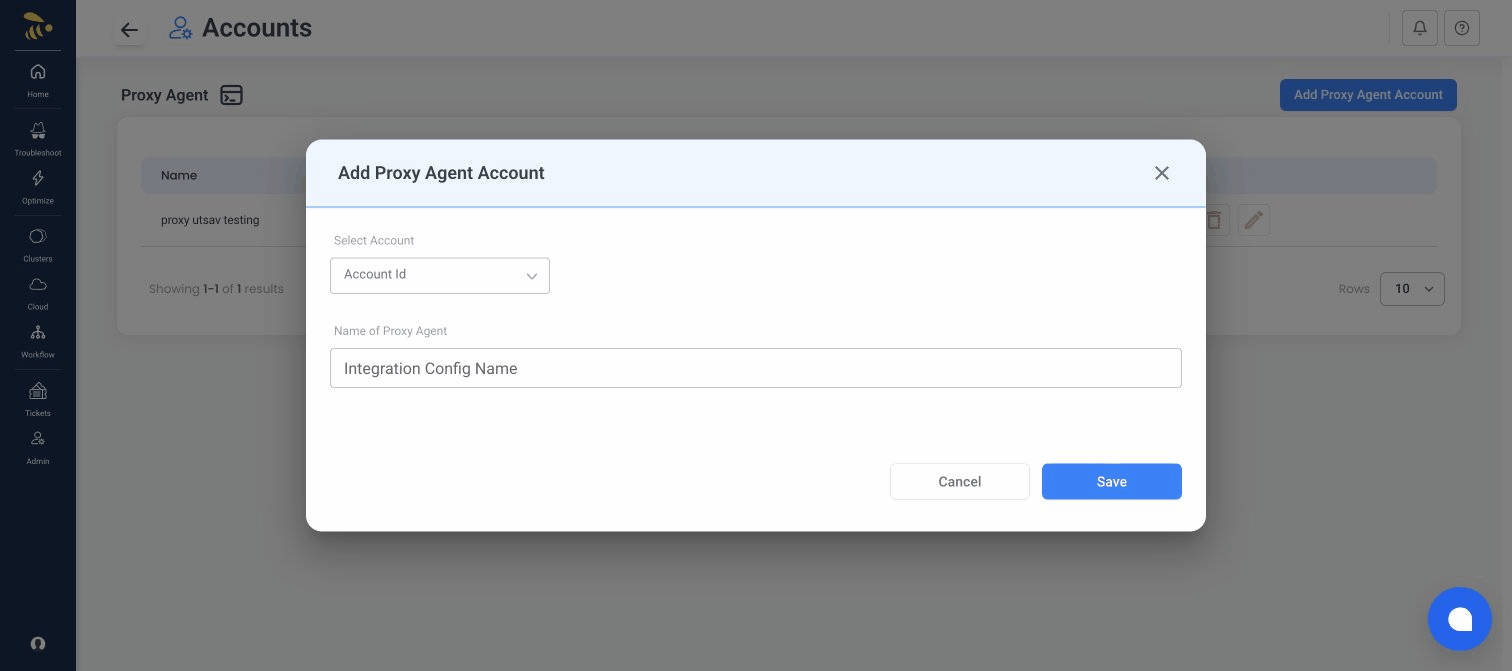
- Click Add Proxy Agent Account. Enter a name for the agent and select the account, then click Save.
- Copy the Relay URL, Access Key, and Access Secret shown after creation. You'll need these to start the agent.
Step 2: Install the Agent
Run one of the following on the machine that has network access to your database.
- Linux
- Windows
- Docker
- Helm
curl -fsSL https://github.com/nudgebee/forager/releases/latest/download/install.sh | \
  NB_RELAY_URL=<RELAY_URL> \
  NB_ACCESS_KEY=<ACCESS_KEY> \
  NB_ACCESS_SECRET=<ACCESS_SECRET> \
  bash
Installs Forager as a systemd service. Requires root / sudo.
Open PowerShell as Administrator and run:
$env:NB_RELAY_URL="<RELAY_URL>"
$env:NB_ACCESS_KEY="<ACCESS_KEY>"
$env:NB_ACCESS_SECRET="<ACCESS_SECRET>"
Set-ExecutionPolicy Bypass -Scope Process -Force
iwr -useb https://github.com/nudgebee/forager/releases/latest/download/install.ps1 | iex
Installs Forager as a Windows Service that starts automatically on boot.
docker run -d --name nudgebee-forager \
  -e NB_RELAY_URL=<RELAY_URL> \
  -e NB_ACCESS_KEY=<ACCESS_KEY> \
  -e NB_ACCESS_SECRET=<ACCESS_SECRET> \
  -v forager-data:/data \
  --restart unless-stopped \
  ghcr.io/nudgebee/forager:latest
helm install nudgebee-forager \
  oci://ghcr.io/nudgebee/charts/forager \
  --set forager.relayURL=<RELAY_URL> \
  --set forager.accessKey=<ACCESS_KEY> \
  --set forager.accessSecret=<ACCESS_SECRET>
Replace <RELAY_URL>, <ACCESS_KEY>, and <ACCESS_SECRET> with the values from Step 1.
Step 3: Verify the Agent is Connected
Linux — stream logs to confirm the agent connected:
journalctl -u nudgebee-forager -f
You should see:
{"level":"INFO","msg":"starting forager"}
{"level":"INFO","msg":"connected to relay, greeting sent"}
Windows — check the service is running:
Get-Service NudgebeeForager
Expected output:
Status   Name               DisplayName
------   ----               -----------
Running  NudgebeeForager    NudgeBee Forager
To see the actual log output on Windows, run the binary directly in a PowerShell window — see Troubleshooting: Windows Service.
In the NudgeBee UI, the agent should appear on the Proxy Agent accounts page.
Step 4: Add a Datasource
- Go to Admin → Integrations → Databases in the NudgeBee UI.
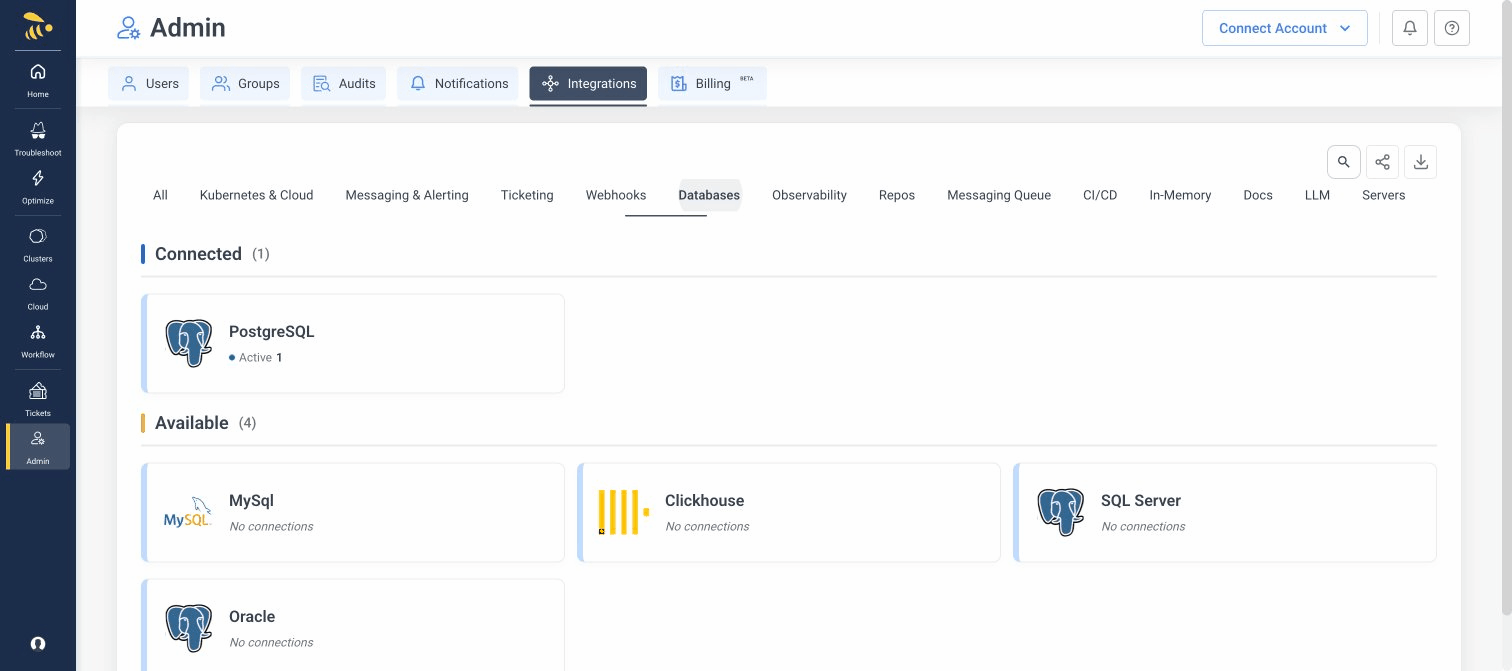
-
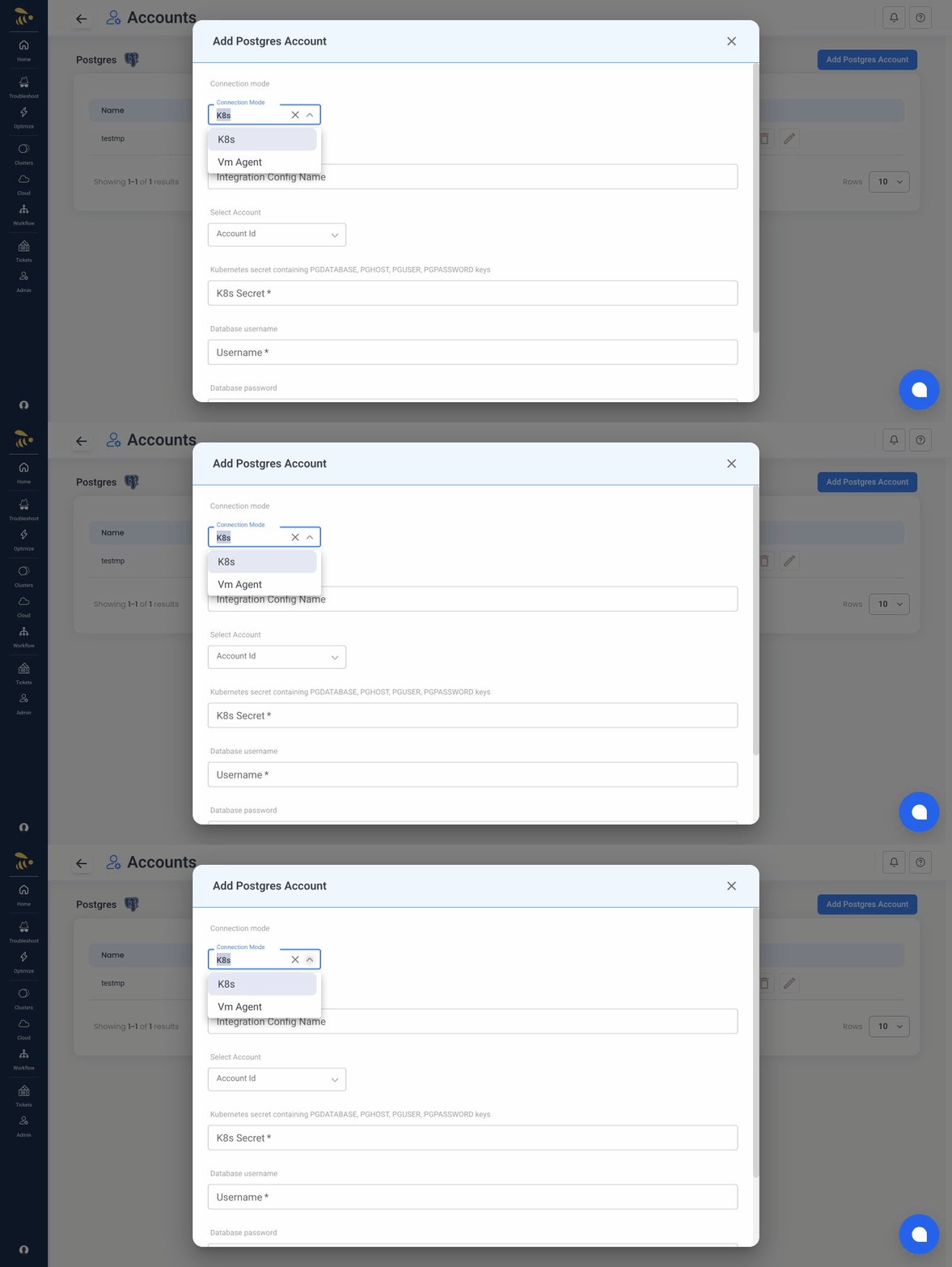
Click the database type you want to connect (e.g., PostgreSQL). Then click Add Postgres Account (or the equivalent button for your database type).
-
In the Connection Mode dropdown, select Proxy Agent.
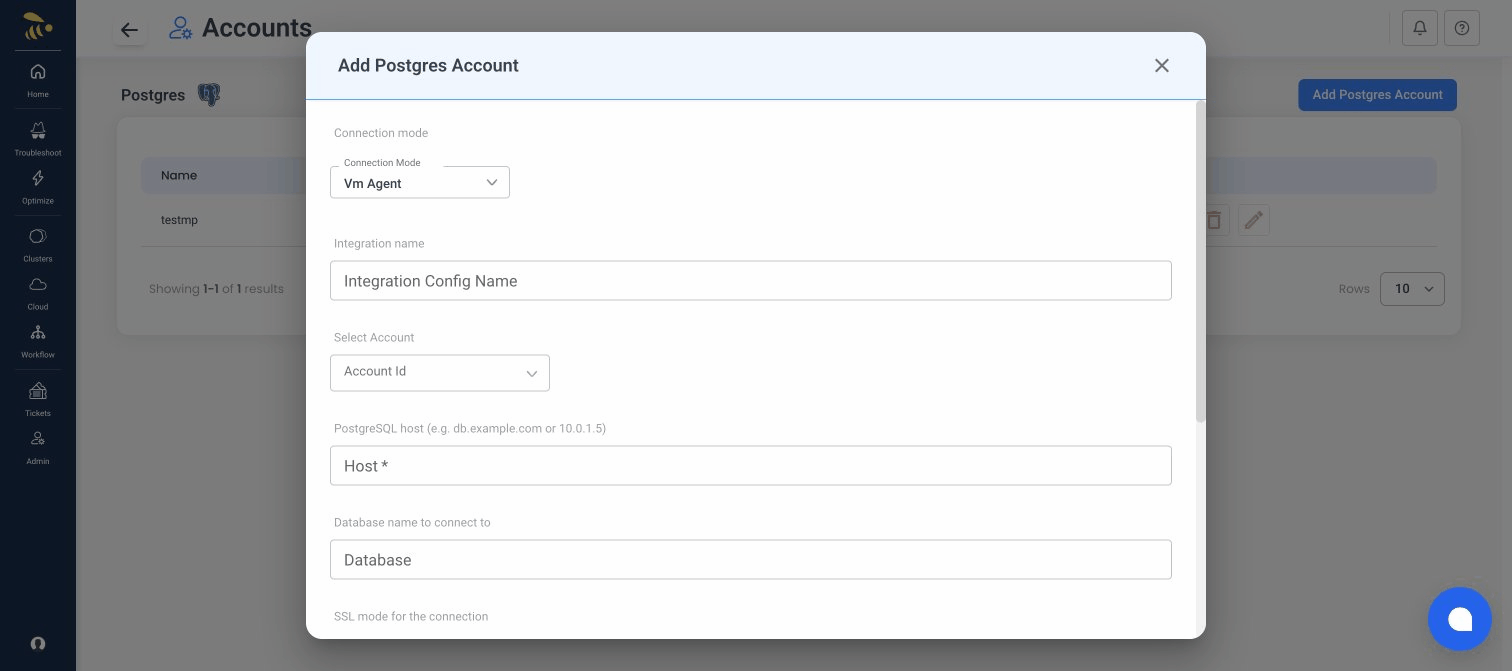
- Enter the connection details:
- Integration name — a descriptive name for this datasource
- Select Account — choose the account to associate this datasource with
- Host — hostname or IP of your database (as reachable from the agent, e.g.,
db.example.comor10.0.1.5) - Database — database name to connect to
- SSL Mode — SSL mode for the connection (optional)
- Credential Source — where database credentials are stored (see Credential Sources)
- Read Only — optionally restrict to read-only queries
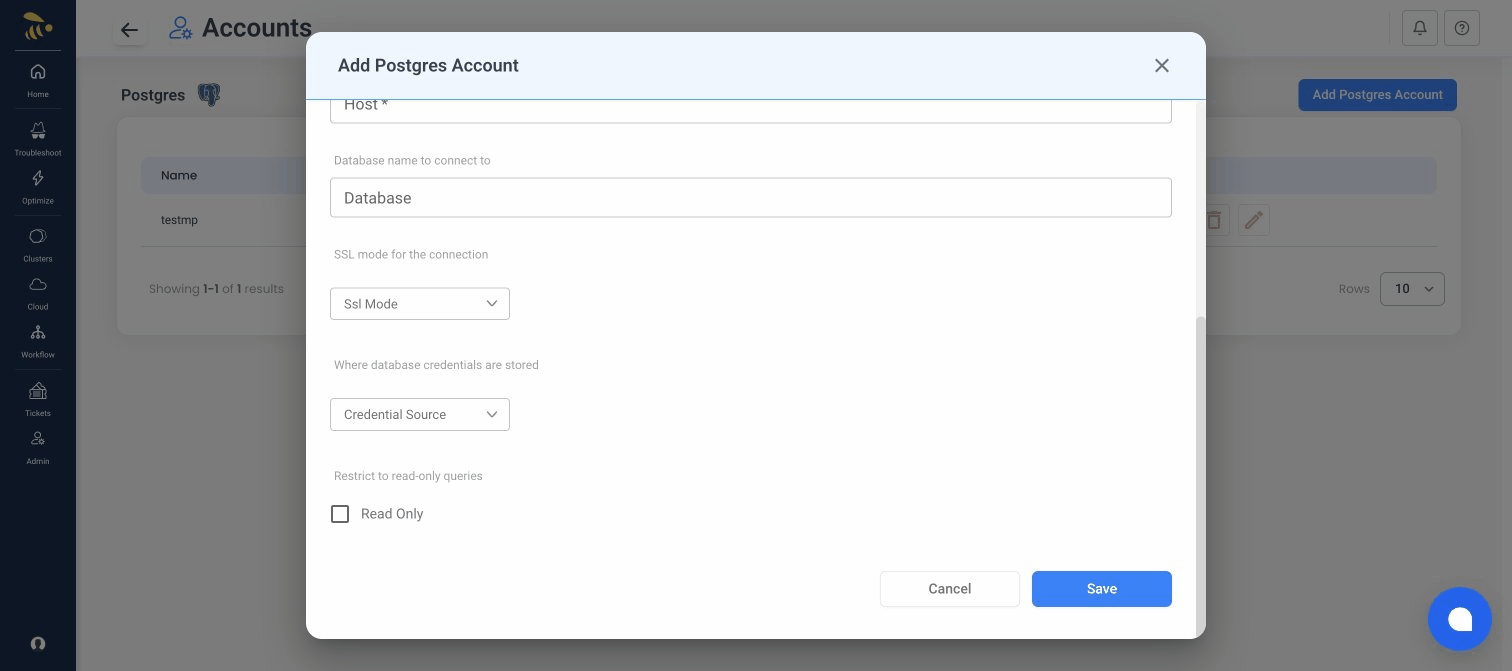
- Click Save. NudgeBee pushes the configuration to your agent automatically.
Step 5: Verify the Datasource
Check the agent logs for confirmation:
{"level":"INFO","msg":"received datasource config sync","datasource_count":1}
{"level":"INFO","msg":"database connection established","type":"postgresql","host":"10.0.1.50","port":5432}
{"level":"INFO","msg":"datasource configured","id":"...","type":"postgresql","proxy_type":"db-proxy"}
The datasource should now appear as Healthy in the NudgeBee Integrations page.
Step 6: Run Your First Database Investigation with NuBi
Verify end-to-end proxy connectivity through your firewall by asking NuBi to inspect the database:
- In the NudgeBee UI, open the NuBi AI drawer on the right side.
- Run a concrete diagnostic query:
Check the connected PostgreSQL database: show me the top 5 largest tables, table bloat, and any long-running transactions. - Expected Result: NuBi securely relays the query through the Proxy Agent to your database without exposing any open inbound firewall ports, and returns:
- A markdown table listing the top 5 tables by disk footprint (table size + index size).
- Bloat estimates and dead tuple percentages.
- Active database connections, locks, and cache hit ratios.
- Success Verification: When you receive live table metrics, your Proxy Agent tunnel is fully established and secure.
What's Next
You're done! You can now ask NudgeBee questions about your database — it will query through the proxy agent automatically.
- Add more datasources using the UI or a local YAML config file
- Use cloud secret managers instead of inline credentials
- Deploy on Kubernetes with Helm
- Want to define datasources in a config file instead of the UI? See Configuration Reference and Installation — using a local config file
- Having issues? See Troubleshooting