Azure Application Insights
Prerequisites
Before configuring the integration, ensure you have the following from your Azure portal:
- An Azure App Registration with access to your Application Insights resource
- Your Application Insights App ID
- Your App Registration Client ID, Client Secret, and Tenant ID
- (For logs) Your Log Analytics Workspace ID
Azure Application Insights Integration Configuration
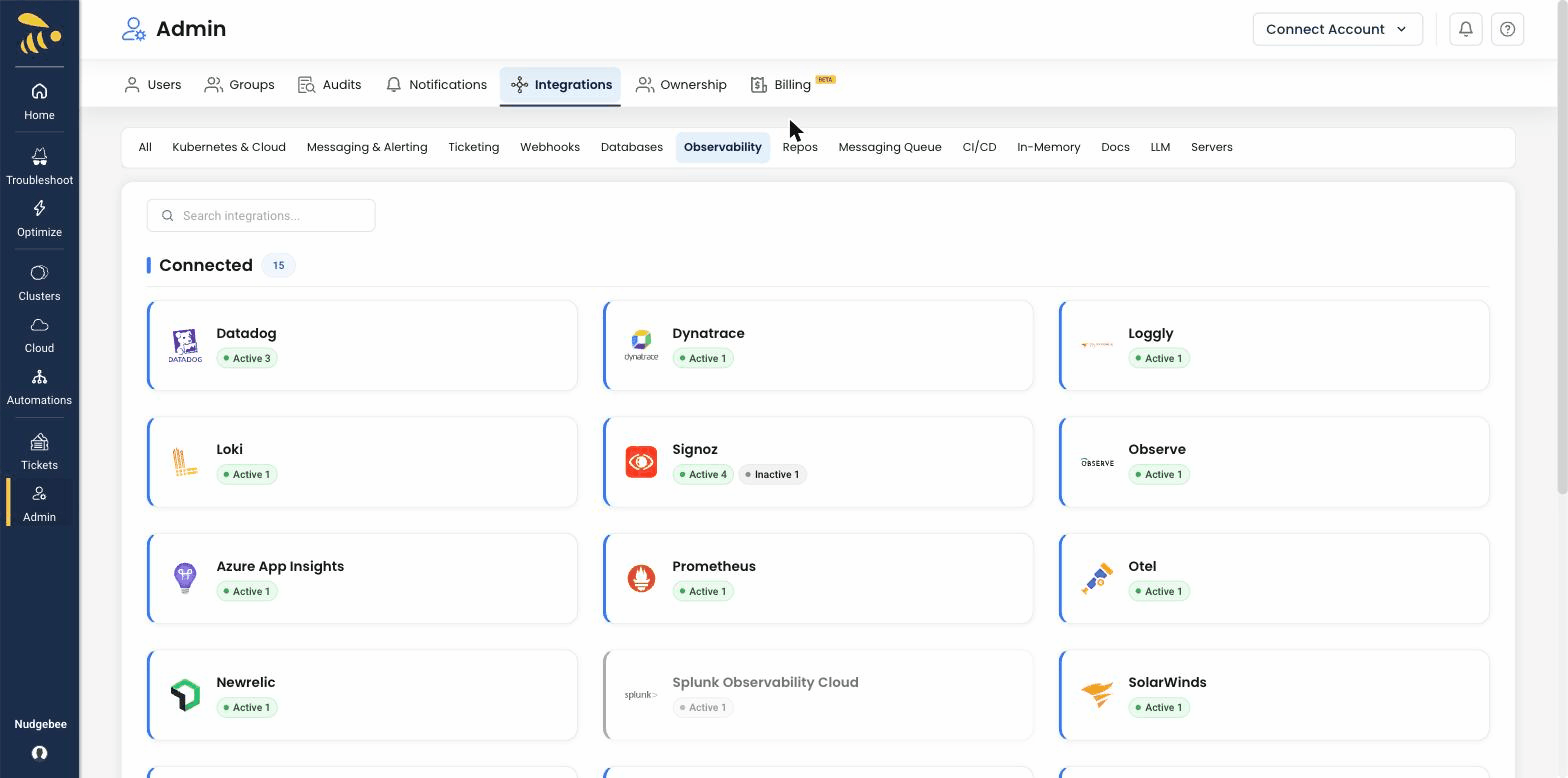
Navigate to Integrations > Observability tab and select Azure Application Insights to open the configuration form.
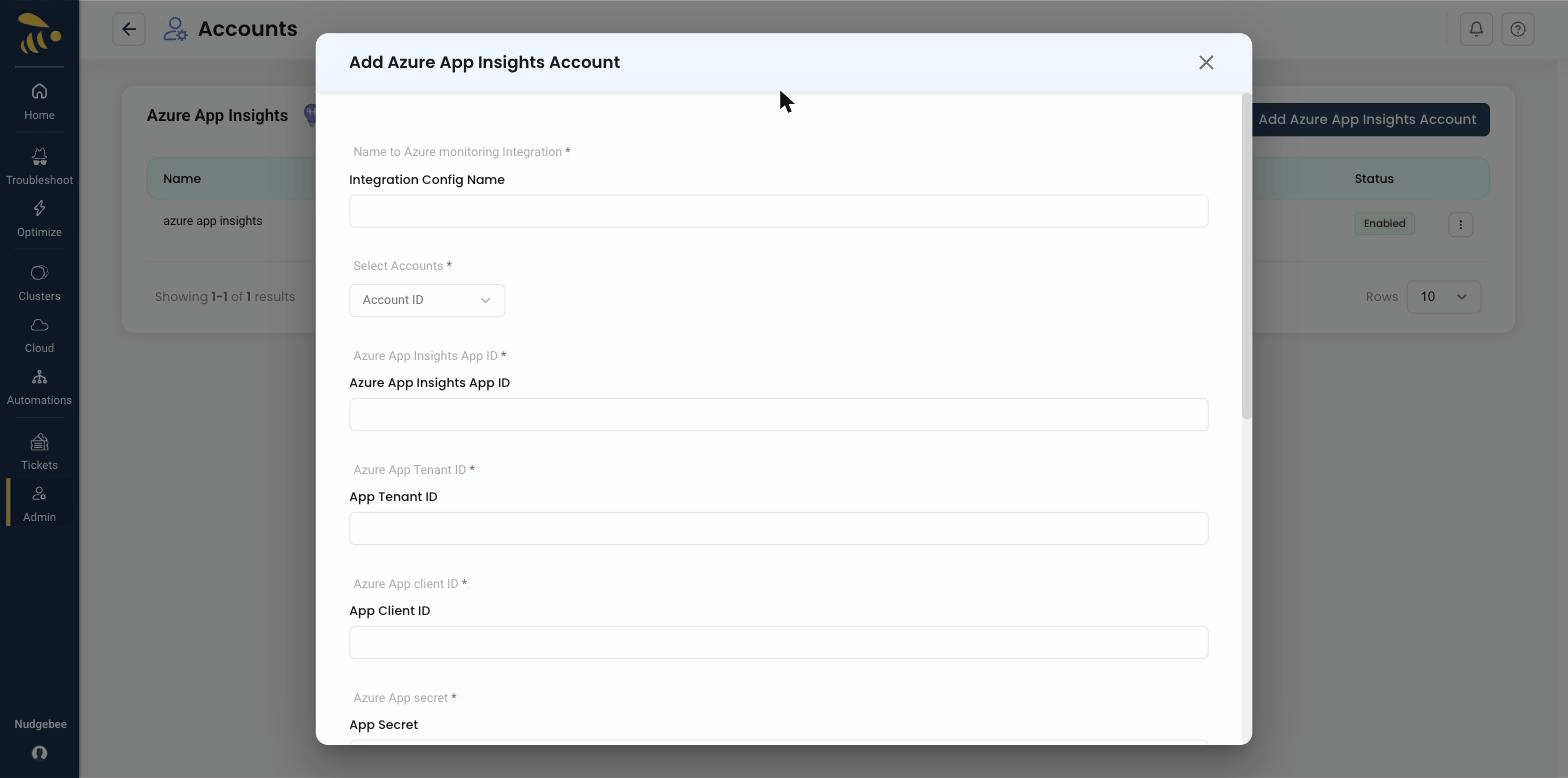
Configuration Fields
-
Account Id
- Select the NudgeBee account to link with this Azure integration from the dropdown.
-
Integration Config Name
- A descriptive name for this integration (e.g.,
Production Azure App Insights). - Used to identify this configuration when multiple Azure integrations exist.
- A descriptive name for this integration (e.g.,
-
App Insights App ID * (Required)
- Your Azure Application Insights Application ID.
- To find it: open the Azure portal > navigate to your Application Insights resource > Configure > API Access. The Application ID is displayed at the top.
-
App Client ID * (Required)
- The Client (Application) ID of your Azure App Registration.
- To find it: open the Azure portal > Azure Active Directory > App registrations > select your app > Overview. The Application (client) ID is displayed.
-
App Secret * (Required)
- A Client Secret generated for your App Registration.
- To create one: in your App Registration > Certificates & secrets > New client secret. Copy the secret value immediately — it is only shown once.
- This value is stored encrypted in NudgeBee.
-
App Tenant ID * (Required)
- Your Azure Directory (Tenant) ID.
- To find it: open the Azure portal > Azure Active Directory > Overview. The Tenant ID is displayed.
-
Traces Table Name
- The Application Insights table used for trace/dependency queries.
- Default:
dependencies. Other common values:requests,traces.
-
Logs Table Name
- The Log Analytics table used for log queries.
- Default:
ContainerLogV2. Other common values:ContainerLog,AppTraces.
-
Log Workbook ID
- Your Log Analytics Workspace ID (required if using NudgeBee as a log provider).
- To find it: open the Azure portal > Log Analytics workspaces > select your workspace > Overview. The Workspace ID is displayed.
-
Default Log Provider
- Enable this to set Azure Application Insights as the default source for log queries across NudgeBee.
-
Default Traces Provider
- Enable this to set Azure Application Insights as the default source for distributed trace queries.
What Gets Connected
Once configured, NudgeBee queries your Azure resources using Kusto Query Language (KQL):
| Signal | Azure API | Table | Example |
|---|---|---|---|
| Traces | Application Insights API | dependencies | dependencies | where operation_Id == "abc123" | take 100 |
| Logs | Log Analytics API | ContainerLogV2 | ContainerLogV2 | where TimeGenerated > ago(1h) | take 100 |
NudgeBee authenticates using OAuth 2.0 client credentials flow via your App Registration. Tokens are cached and refreshed automatically.
Credential validation: on save, NudgeBee runs a test query (<table> | take 1) against both the Application Insights API and Log Analytics API (if enabled) to verify your credentials and table names are correct.
Required Azure Permissions
Your App Registration must have the following permissions:
| Resource | Permission | Purpose |
|---|---|---|
| Application Insights | Reader role on the resource | Query traces and dependencies |
| Log Analytics Workspace | Reader role on the workspace | Query logs |
Verify the Integration
- Save the configuration. If credentials are valid, the integration is created without errors.
- Navigate to any Kubernetes workload in NudgeBee.
- Open the Logs or Traces tab.
- Confirm that data from Azure Application Insights appears in the query results.
Notes
- Authentication uses the OAuth 2.0 client credentials grant. Tokens are cached with automatic refresh.
- Trace queries go to the Application Insights API (
api.applicationinsights.io). - Log queries go to the Log Analytics API (
api.loganalytics.io). - Custom table names are supported for both traces and logs to accommodate different Azure configurations.