New Relic
Prerequisites
Before configuring the integration, ensure you have the following from your New Relic account:
- A User API Key (not a License Key or Ingest Key)
- Your New Relic Account ID
- Your account's region (US or EU)
New Relic Integration Configuration
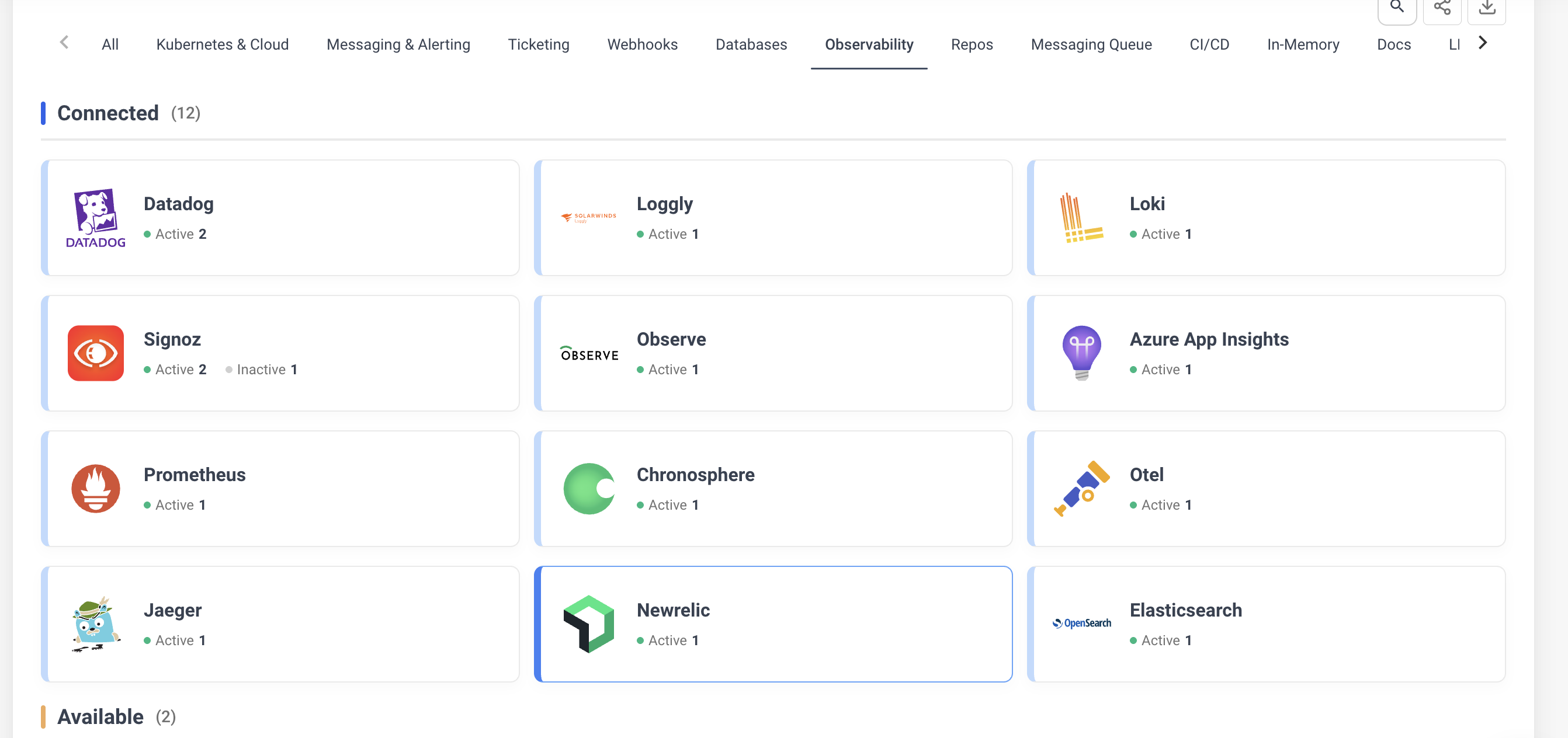
Navigate to Integrations > Observability tab and select New Relic to open the configuration form.
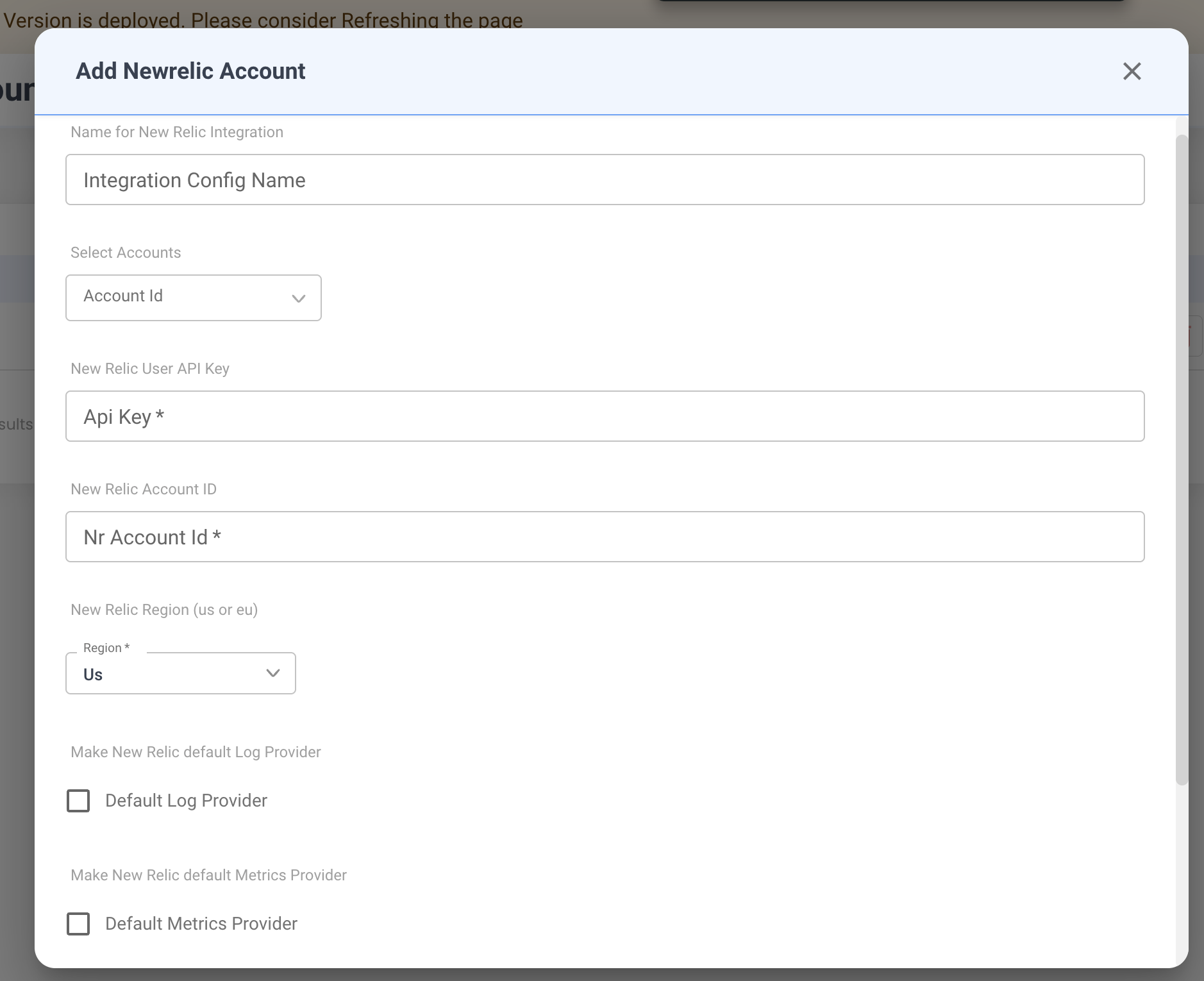
Configuration Fields
-
Integration Config Name
- A descriptive name for this integration (e.g.,
Production New Relic). - Used to identify this configuration when multiple New Relic integrations exist.
- A descriptive name for this integration (e.g.,
-
Account Id
- Select the NudgeBee account to link with this New Relic integration from the dropdown.
-
API Key * (Required)
- Your New Relic User API Key.
- To generate one: open New Relic, click your user menu (bottom-left) > API Keys > Create a key > select User as the key type.
- This key is used to query logs, traces, and metrics via the NerdGraph (GraphQL) API.
-
New Relic Account ID * (Required)
- Your numeric New Relic Account ID.
- To find it: click your user menu > Account Settings. The Account ID is displayed at the top, and also appears in the URL (e.g.,
https://one.newrelic.com/nr1-core?account=1234567).
-
Region * (Required)
- The data center region of your New Relic account. Select from the dropdown:
us— United States datacenter (api.newrelic.com)eu— European Union datacenter (api.eu.newrelic.com)
- If unsure, check your New Relic login URL:
one.newrelic.com= US,one.eu.newrelic.com= EU.
- The data center region of your New Relic account. Select from the dropdown:
-
Default Log Provider
- Enable this to set New Relic as the default source for log queries across NudgeBee.
-
Default Metrics Provider
- Enable this to set New Relic as the default source for metric queries.
-
Default Traces Provider
- Enable this to set New Relic as the default source for distributed trace queries.
What Gets Connected
Once configured, NudgeBee queries your New Relic account using NRQL (New Relic Query Language) via the NerdGraph GraphQL API:
| Signal | NRQL Event Type | Example |
|---|---|---|
| Logs | Log | SELECT * FROM Log WHERE service.name = 'checkout' SINCE 1 hour ago |
| Traces | Span | SELECT * FROM Span WHERE service.name = 'api-gateway' SINCE 30 minutes ago |
| Metrics | Metric | SELECT average(k8s.container.cpuCoresUtilization) FROM Metric TIMESERIES |
NudgeBee supports the full range of NRQL operators for filtering: =, !=, LIKE, IN, BETWEEN, >, <, and more.
Credential validation: on save, NudgeBee runs SELECT count(*) FROM Transaction SINCE 1 minute ago against your account to verify the API key, Account ID, and region are correct.
Verify the Integration
- Save the configuration. If credentials are valid, the integration is created without errors.
- Navigate to any Kubernetes workload in NudgeBee.
- Open the Logs or Traces tab.
- Confirm that data from New Relic appears in the query results.
Notes
- New Relic traces support a 14-day lookback window (vs. minutes for eBPF-based traces).
- Log queries are limited to 2000 results per request. Use filters to narrow results.
- Metric queries support both instant and time-series modes with configurable intervals.
- Field names from Fluent Bit, Fluentd, and New Relic's own K8s integration are all supported automatically.