Confluence
Connect a Confluence space so your runbooks, architecture notes and internal procedures become searchable context for NuBi and AI troubleshooting. Confluence is listed under Docs in the integrations catalog.
Works with Confluence Cloud and Confluence Data Center / Server.
When Do You Need This?
This integration is optional. Connect Confluence when the knowledge your team needs during an incident lives there rather than in NudgeBee — service ownership, escalation procedures, environment quirks, and the runbooks people actually follow. Once indexed, that content is retrieved alongside telemetry when NuBi answers a question.
Prerequisites
- A Confluence account NudgeBee can authenticate as, with read access to the spaces you want indexed. A dedicated service account is preferable to a personal one — indexing follows that account's permissions, so a personal account's access changes when the person's does.
- A token appropriate to your deployment:
- Cloud — an API token created against the account's Atlassian ID.
- Data Center / Server — a personal access token, or the account password.
Step 1: Open the Configuration Form
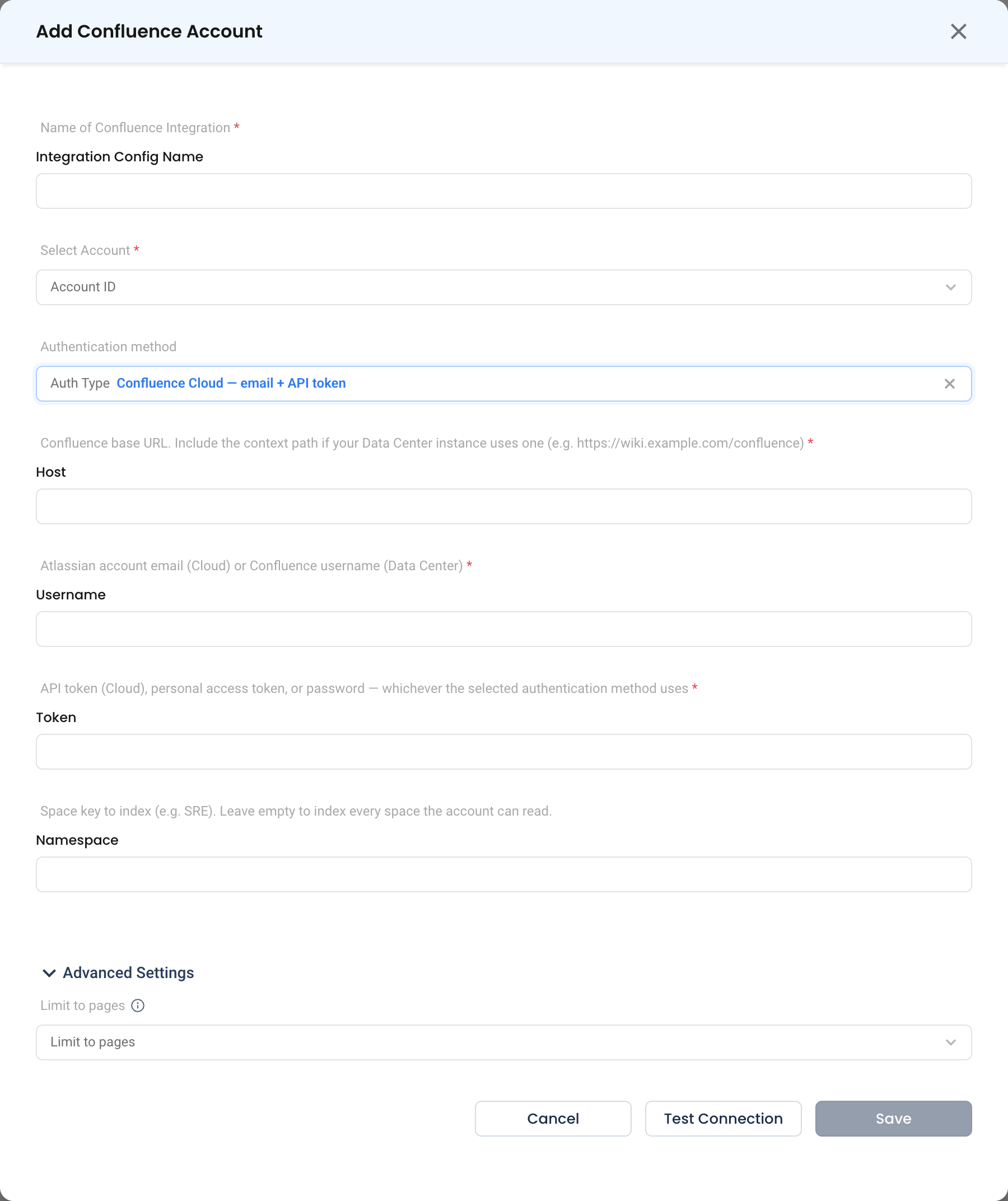
Navigate to Admin > Integrations > Docs and select Confluence, then click Add Confluence Account.

Step 2: Fill In the Connection
- Name of Confluence Integration * (Required) — e.g.
sre-runbooks. - Select Account * (Required) — The NudgeBee account or accounts this integration serves.
- Auth Type — Which authentication method to use:
| Option | Use for |
|---|---|
| Confluence Cloud — email + API token | Atlassian-hosted Confluence. Username is the Atlassian account email. |
| Data Center / Server — personal access token | Self-hosted, using a PAT. |
| Data Center / Server — username + password | Self-hosted, where PATs are unavailable. |
- Host * (Required) — The Confluence base URL, e.g.
https://yourcompany.atlassian.net. For Data Center, include the context path if your instance uses one, e.g.https://wiki.example.com/confluence. - Username * (Required) — Atlassian account email (Cloud) or Confluence username (Data Center).
- Token * (Required) — The API token, personal access token, or password, matching the authentication method selected above.
- Namespace — The space key to index, e.g.
SRE. Leave empty to index every space the account can read.
Advanced Settings
- Limit to pages — Restrict indexing to specific pages instead of a whole space. Use this when a space is large but only a handful of pages are operationally relevant.
Step 3: Test and Save
Click Test Connection, then Save.
Start narrow. Index one space — or a handful of pages — that your team genuinely uses during incidents, and widen later. Indexing everything an account can read pulls in meeting notes and drafts, which makes retrieval noisier rather than better.
Verify the Integration
- Click Test Connection on the form — it should succeed before you save.
- Ask NuBi a question whose answer only exists in the indexed space — for example "what is the escalation path for the payments service?" — and confirm the answer reflects your Confluence content.
Troubleshooting
| Symptom | Likely Cause | Fix |
|---|---|---|
401 Unauthorized on Cloud | Password used instead of an API token | Cloud requires an API token, not the account password. |
401 or 403 on Data Center | Token type does not match Auth Type | Select the authentication method that matches the credential you are supplying. |
404 on the base URL | Missing context path | Data Center instances behind a path need it included, e.g. https://wiki.example.com/confluence. |
| Connection succeeds, nothing is retrieved | The account cannot read the space, or the space key is wrong | Space keys are case-sensitive; confirm the account can open the space in a browser. |
| Only some pages are found | Limit to pages is set | Clear it to index the whole space. |
| Answers cite stale content | The page changed after indexing | Re-run the connection so the space is re-indexed. |