PagerDuty
Overview
NudgeBee integrates with PagerDuty for incident management. Events and alerts can automatically create PagerDuty incidents, triggering your on-call workflows and escalation policies.
Prerequisites
Before configuring the integration, ensure you have:
- A PagerDuty account
- A PagerDuty API key (v2 REST API key)
- At least one service configured in PagerDuty
Generate a PagerDuty API Key
- In PagerDuty, navigate to Integrations > Developer Tools > API Access Keys.
- Click Create New API Key.
- Enter a description (e.g.,
NudgeBee Integration) and click Create Key. - Copy the API key — it will not be shown again.
Use a General Access REST API Key (not a read-only key). NudgeBee needs write access to create incidents and add notes.
PagerDuty Integration Configuration
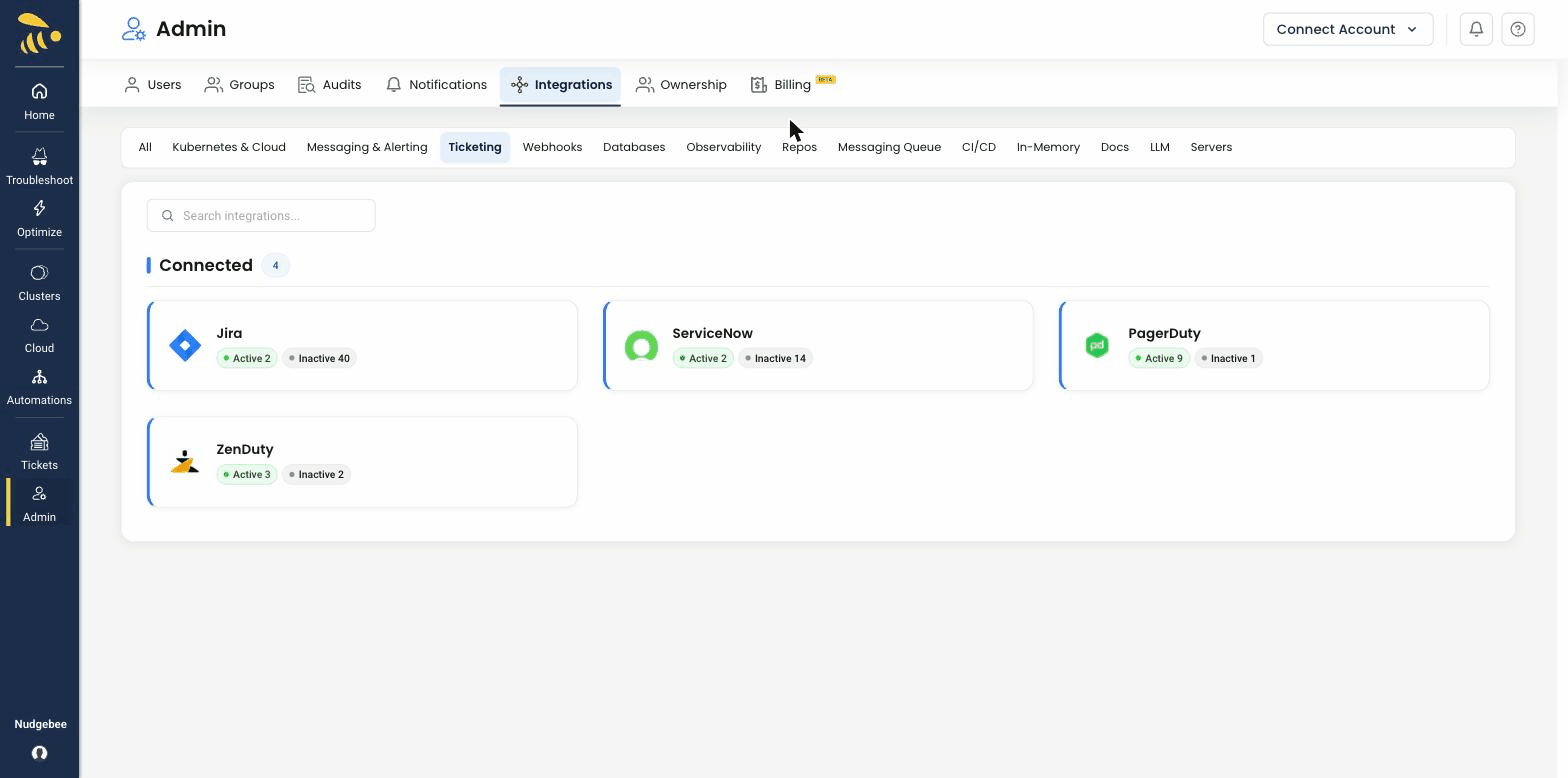
Navigate to Settings > Integrations > Tickets tab and select PagerDuty to open the configuration form.
Configuration Fields
-
API Key * (Required)
- Your PagerDuty REST API key (v2).
- This value is stored encrypted in NudgeBee.
-
URL
- PagerDuty API URL. Default:
api.pagerduty.com. - Only change this if you have a custom PagerDuty endpoint.
- PagerDuty API URL. Default:
-
Username
- Your PagerDuty username or email. Used as the "From" header when creating incidents.
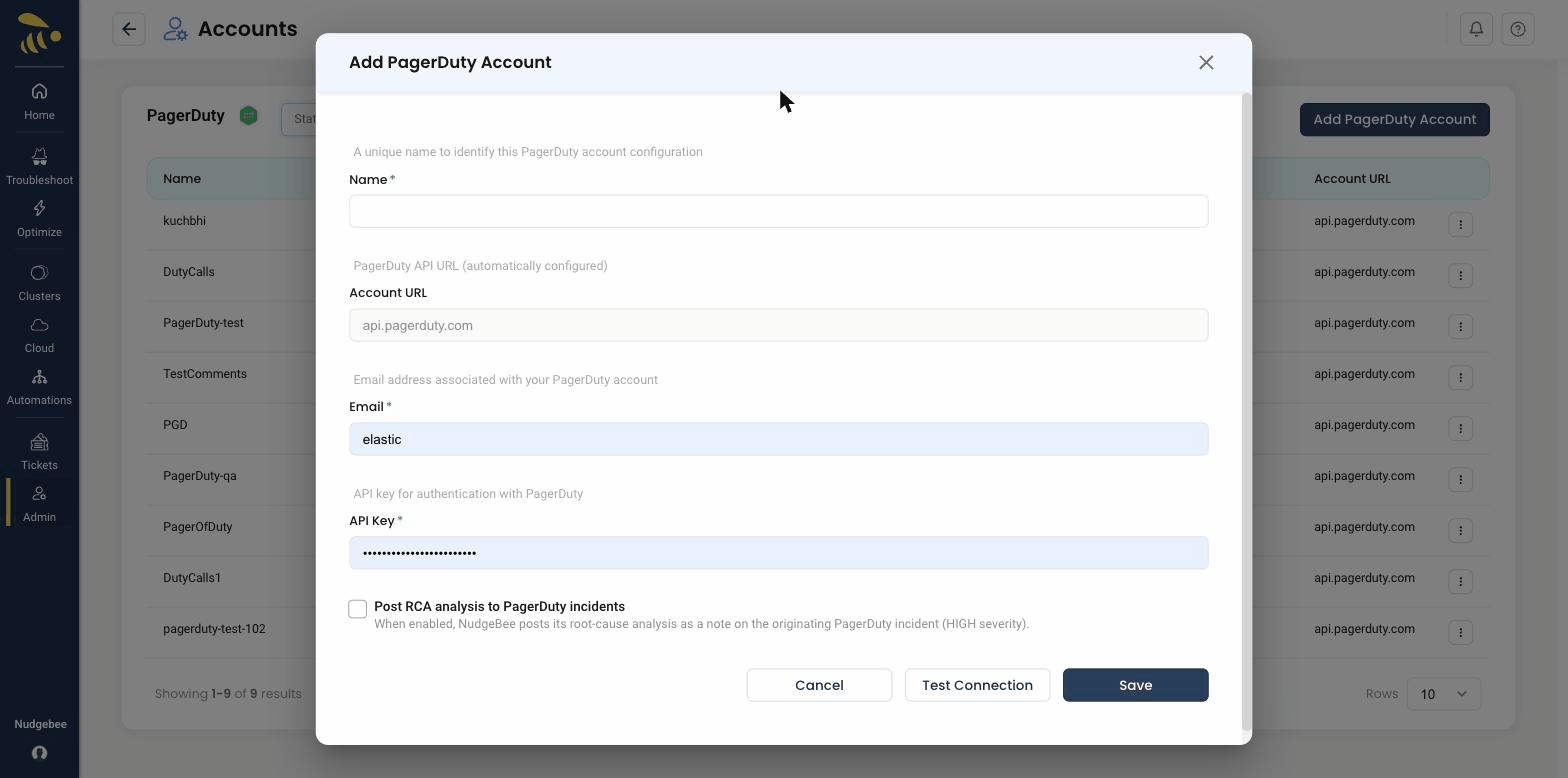
Credential validation: on save, NudgeBee tests the connection by listing your PagerDuty services. If authentication fails, verify your API key is correct and has sufficient permissions.
Capabilities
Once configured, NudgeBee can perform the following operations with PagerDuty:
| Operation | Description |
|---|---|
| Create Incident | Create incidents linked to a specific PagerDuty service |
| Add Note | Add notes to existing incidents |
| Query Metadata | Fetch available services and users for form population |
Supported Incident Fields
| Field | Description |
|---|---|
| Title | Incident title |
| Description | Incident body with event context |
| Service | Target PagerDuty service for the incident |
Creating Incidents
Incidents can be created from NudgeBee in two ways:
- Automatically — from events, alerts, or autopilot runbook actions
- Manually — from the NudgeBee event detail view by clicking the ticket icon
When an incident is created, it triggers PagerDuty's on-call schedule, notifications, and escalation policies for the selected service.
Verify the Integration
- Save the configuration. If credentials are valid, the integration is created without errors.
- Navigate to any event in NudgeBee.
- Click the ticket creation option and select PagerDuty.
- Verify the incident is created in your PagerDuty account under the selected service.
Notes
- PagerDuty incidents are created in a triggered state, which activates on-call notifications.
- The username/email field is used as the
Fromheader in PagerDuty API calls (required by PagerDuty for incident creation). - PagerDuty also supports a separate webhook integration for receiving PagerDuty alerts into NudgeBee. See the webhook configuration in Integrations > Webhooks.