Azure
Add Azure Account Integration
To connect your Azure account, you must first create an App Registration in Azure, which generates a Service Principal (an identity for your application). You then grant this Service Principal Reader access to the subscriptions you want to monitor, and NudgeBee onboards them through a short three-step wizard.
The Add Azure Account wizard has three steps — Credentials → Select Subscriptions → Review & Onboard. You enter the service principal credentials in step 1; NudgeBee then discovers the subscriptions that principal can access, so you no longer paste a Subscription ID manually.
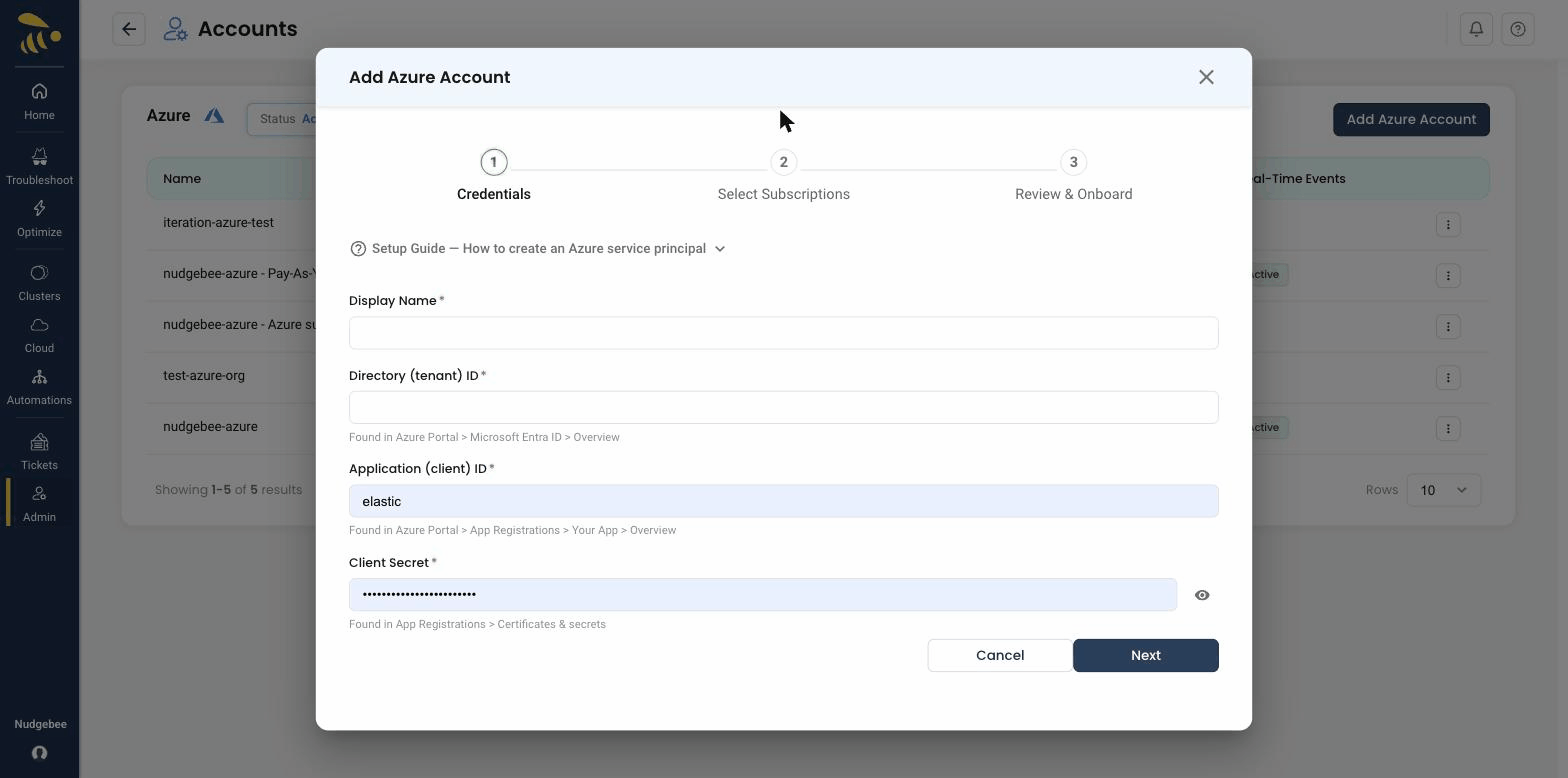
The form includes a built-in Setup Guide — How to create an Azure service principal with copy-paste Azure CLI commands, so you can create the principal without leaving NudgeBee.
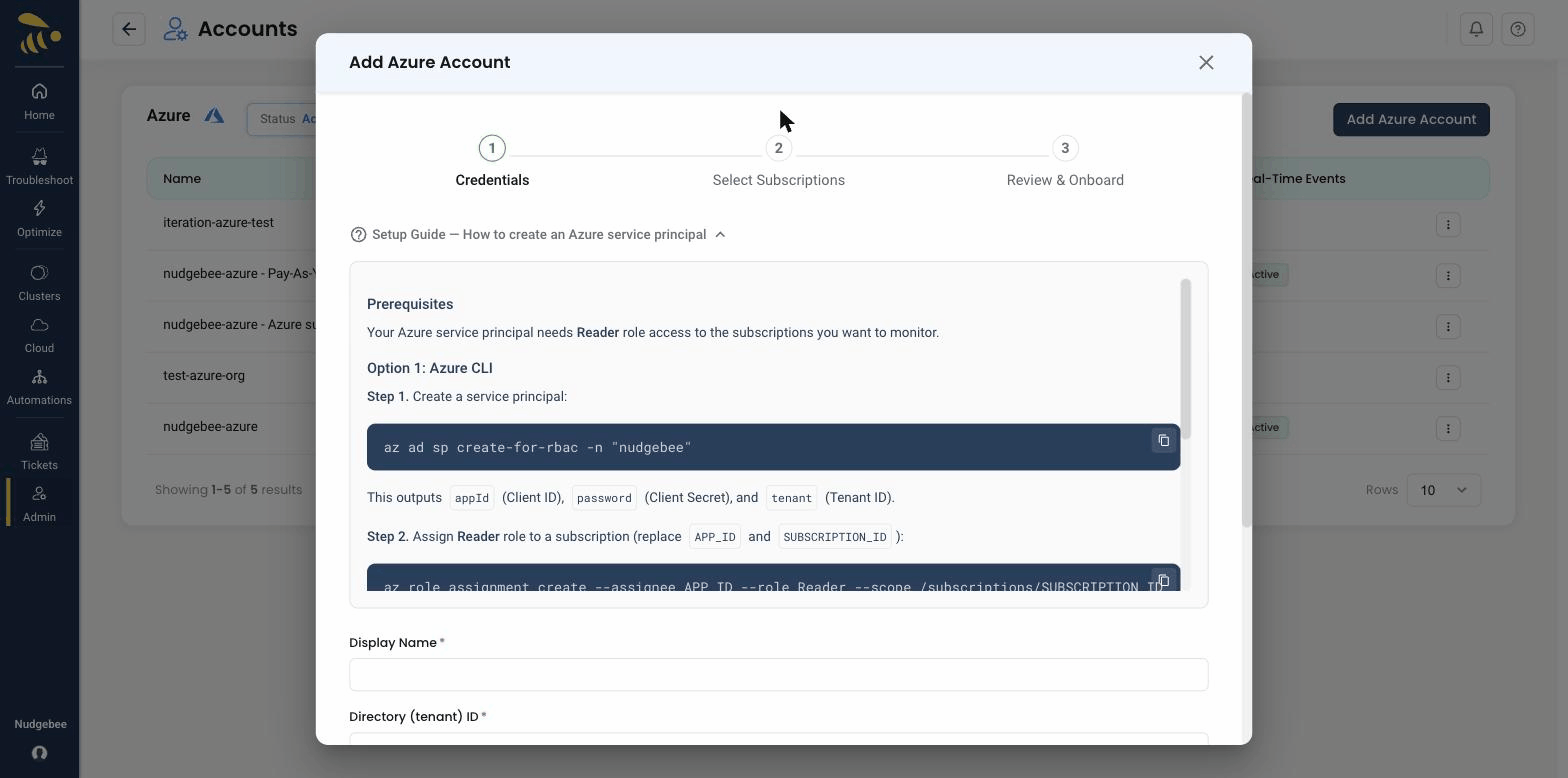
Prerequisites
Before filling out this form, you must create an App Registration (Service Principal), assign roles, and create a client secret.
Option A: Using az CLI
# Set your subscription
export SUBSCRIPTION_ID="your-subscription-id"
az account set --subscription $SUBSCRIPTION_ID

# Create an App Registration
APP=$(az ad app create --display-name "NudgeBee Integration" --query appId -o tsv)

# Create a Service Principal for the app
SP_ID=$(az ad sp create --id $APP --query id -o tsv)

# Assign required roles at subscription scope
az role assignment create --assignee $SP_ID --role "Reader" --scope "/subscriptions/$SUBSCRIPTION_ID"
az role assignment create --assignee $SP_ID --role "Cost Management Reader" --scope "/subscriptions/$SUBSCRIPTION_ID"

# Create a client secret (save the output — it's shown only once)
az ad app credential reset --id $APP --display-name "nudgebee-secret" --query password -o tsv
Option B: Using Azure Portal
- Create an App Registration in the Azure Portal.
- Assign the required roles to this App Registration (Service Principal) at the subscription level. You can find details on all built-in roles in the Azure built-in roles documentation. The required roles are:
- Cost Management Reader (for accessing billing and cost data)
- Reader (for accessing general resource information)
- Create a Client Secret for that App Registration.
Step 1 — Credentials Fields
Here is a guide to finding the values for each required field in step 1 of the wizard.
-
Display Name * (Required)
- A friendly, custom name for this integration (e.g., "Azure Production Account"). This is for your reference.
-
Directory (tenant) ID * (Required)
- What it is: The unique identifier for your Azure Active Directory (Microsoft Entra ID) instance.
- Where to find it:
- Log in to the Azure Portal.
- Navigate to Microsoft Entra ID (or search for "Azure Active Directory").
- On the Overview page, you will find the Tenant ID. Copy this value.
-
Application (client) ID * (Required)
- What it is: The unique ID for the App Registration you created for this integration.
- Where to find it:
- In Microsoft Entra ID, go to App registrations.
- Click on the name of the application you created.
- On its Overview page, you will find the Application (client)ID. Copy this value.
-
Client Secret * (Required)
- What it is: A password for your application. Treat this value like a password and store it securely.
- Where to find it:
- In your App registration, navigate to the Certificates & secrets blade.
- Click New client secret.
- Add a description and choose an expiration period.
- Important: After you click "Add," the secret's Value will be displayed one time only. You must copy this value immediately. It will be permanently hidden after you leave the page.
You no longer paste a Subscription ID here. After the credentials are validated, NudgeBee discovers the subscriptions the service principal can access and lets you pick them in the next step.
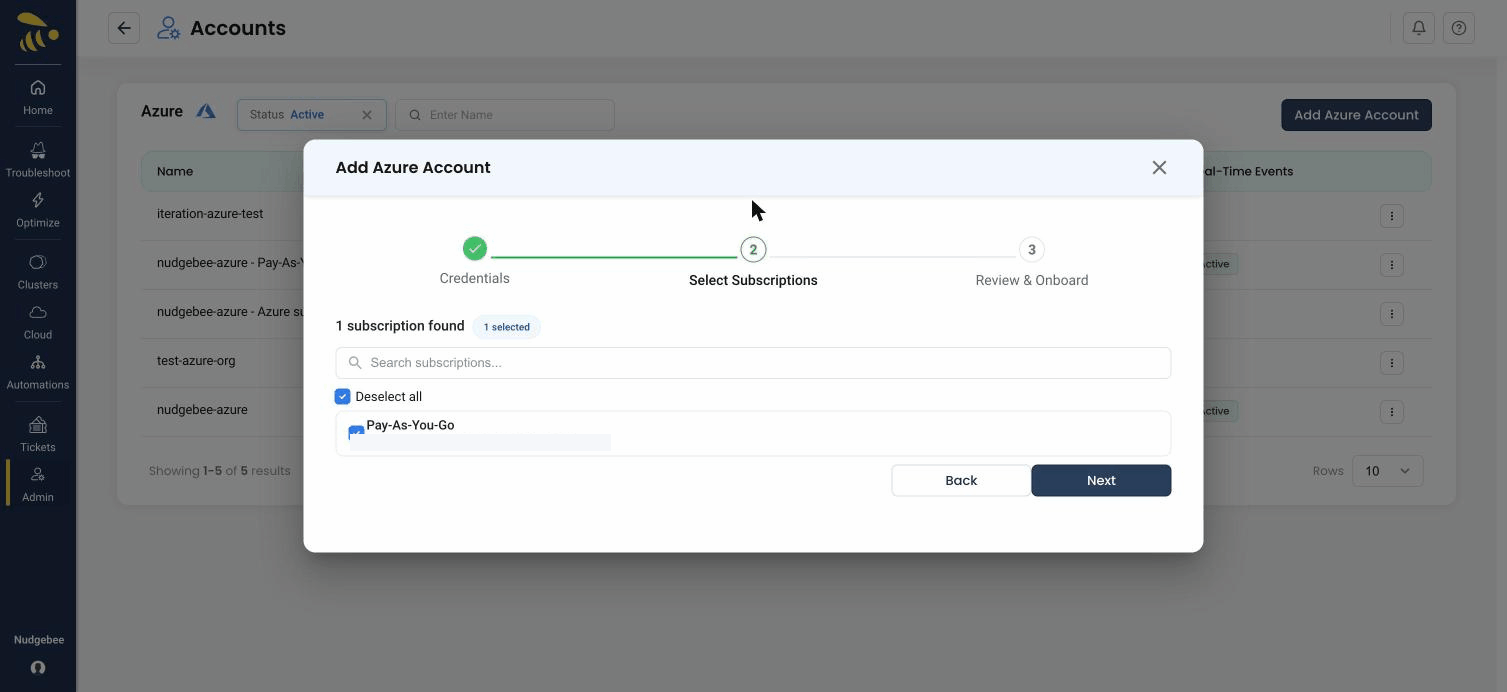
Step 2 — Select Subscriptions
Click Next, then Discover Subscriptions. NudgeBee uses the service principal to find the subscriptions it can access and lists them — select the ones you want to onboard.
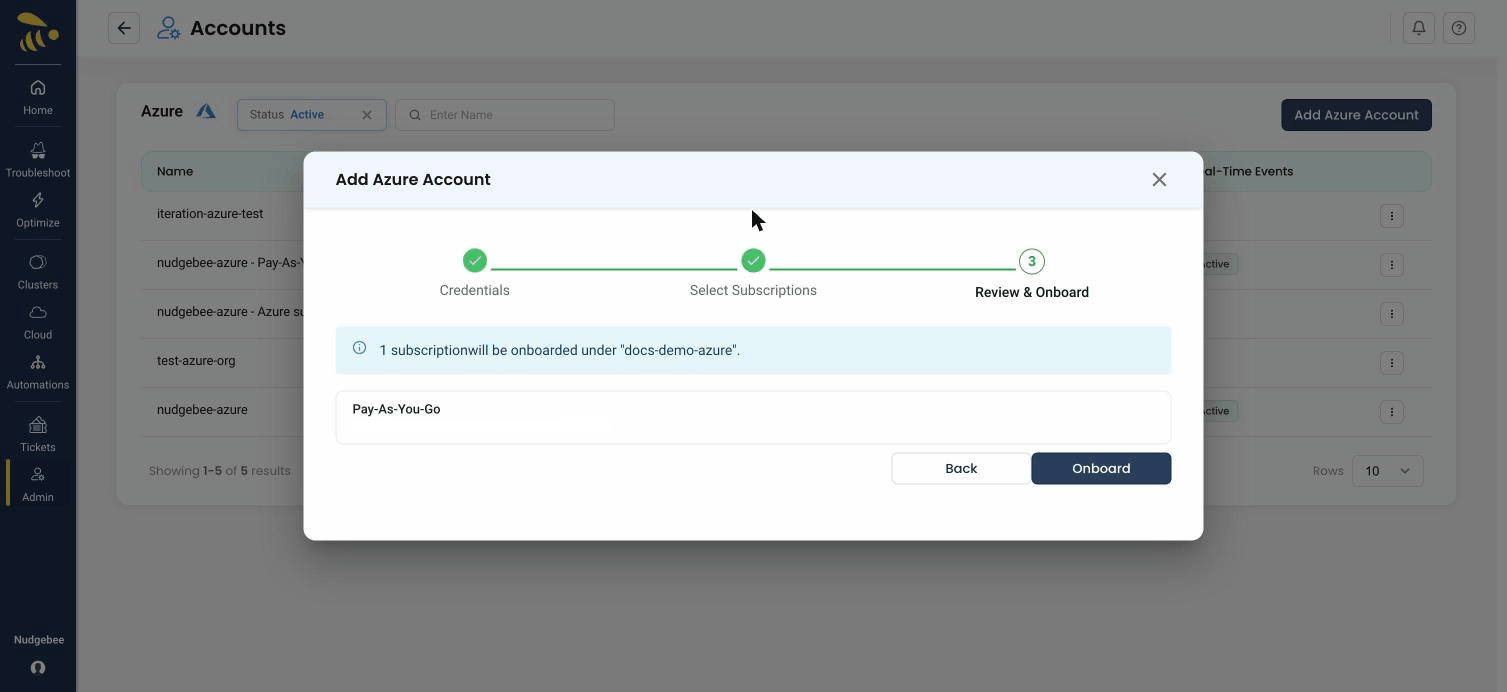
Step 3 — Review & Onboard
Review the selected subscriptions and click Onboard to finish. The connected subscriptions then appear in the Azure accounts list with their status and real-time event state.
Cost Management Query Schema
When querying Azure Cost Management API, the dataset.grouping field specifies how cost data should be aggregated. Using an invalid dimension name will result in a 400 Bad Request error, even when permissions are correctly configured.
Valid Grouping Dimensions
The following are valid values for dataset.grouping[].name:
ServiceName(recommended replacement for deprecatedConsumedService)ResourceTypeResourceGroupNameResourceGroupResourceIdResourceLocationSubscriptionIdSubscriptionNameMeterCategoryMeterSubcategoryMeterServiceFamilyUnitOfMeasurePartNumberBillingAccountNameBillingProfileIdBillingProfileNameInvoiceSectionInvoiceSectionIdInvoiceSectionNameProductResourceGuidChargeTypeProductOrderIdProductOrderNamePublisherTypeReservationIdReservationNameFrequencyInvoiceIdPricingModelCostAllocationRuleNameMarkupRuleNameBillingMonthProviderBenefitIdBenefitName
Note: ConsumedService is NOT a valid grouping dimension in the current Azure Cost Management API.
Common Errors & Fixes
Invalid Dataset Grouping Error
Symptom:
{
  "error": {
    "code": "BadRequest",
    "message": "Invalid query definition: Invalid dataset grouping: 'ConsumedService'; valid values: 'ResourceGroup','ResourceGroupName','ResourceType',..."
  }
}
Cause:
The query uses ConsumedService (or another invalid dimension) in the dataset.grouping field.
Solution:
Step 1: Correct the query grouping
Update your Cost Management query definition:
Before:
"grouping": [
    {
        "type": "Dimension",
        "name": "ConsumedService"
    }
]
After: Use a valid grouping field like ServiceName or ResourceType:
"grouping": [
    {
        "type": "Dimension",
        "name": "ServiceName"
    }
]
or
"grouping": [
    {
        "type": "Dimension",
        "name": "ResourceType"
    }
]
Note: Check your actual data to decide which grouping fits your needs. ServiceName is usually the closest equivalent to the deprecated ConsumedService.
Step 2: Verify service principal permissions
Even though this is a schema error, the error message may suggest missing permissions. Ensure the following:
- Go to Azure Portal → Subscriptions → Your Subscription → Access control (IAM).
- Ensure the service principal has Cost Management Reader at subscription scope.
- If missing:
- Click Add role assignment → Cost Management Reader → select your service principal → Save.
Important: The Invalid dataset grouping error occurs independently of permissions. Even with correct IAM roles, using an invalid dimension like ConsumedService will cause this error. Always validate your query schema first before investigating permissions.
Azure Monitor Alerts Permissions
NudgeBee collects existing Azure Monitor alerts from your Azure subscription and can create new alerts based on recommendations.
Required Permissions
For reading existing alerts:
# Metric Alerts
microsoft.insights/metricalerts/read
microsoft.insights/metricdefinitions/read
microsoft.insights/metricnamespaces/read

# Activity Log Alerts
microsoft.insights/activitylogalerts/read
microsoft.insights/eventcategories/read
For creating new alerts:
# Metric Alerts
microsoft.insights/metricalerts/write

# Activity Log Alerts
microsoft.insights/activitylogalerts/write
Recommended Azure Roles
For read-only access:
az role assignment create \
  --assignee <service-principal-id> \
  --role "Monitoring Reader" \
  --scope "/subscriptions/<subscription-id>"
For read and write access (to create alerts):
az role assignment create \
  --assignee <service-principal-id> \
  --role "Monitoring Contributor" \
  --scope "/subscriptions/<subscription-id>"