Access & Users
Admin → Access & Users
Who can use NudgeBee and what they can do: Users, Groups, Roles, Ownership and the Audit Log. A tab is greyed out when your role can't read it; tenant admins (including read-only tenant admins) can open them all.
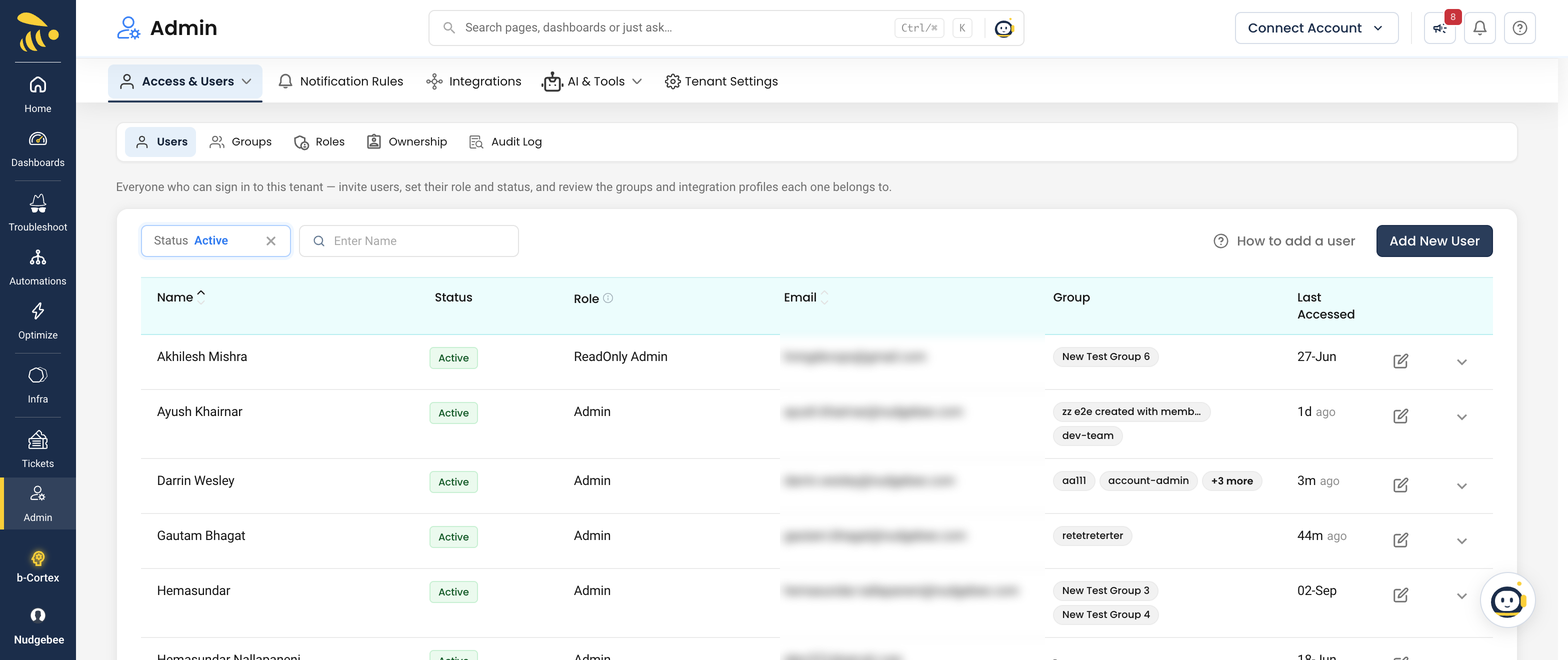
Users
| Column | Meaning |
|---|---|
| Name, Email | The user (sortable) |
| Status | Active, Inactive or Suspended |
| Role | Built-in and custom roles. A user's effective access can also come from their groups |
| Group | Groups the user belongs to |
| Last Accessed | When they last used NudgeBee |
Filter by Status (Active by default) or by name. Expand a row to see the user's Groups and Integration profiles.
Add New User (needs permission to manage users) opens Add User: First name, Last name, Work email, one or more Roles, and Status:
| Status | Effect |
|---|---|
| Active | Can sign in |
| Inactive | Created or invited but hasn't signed in yet; signing in makes the user Active |
| Suspended | Sign-in blocked and existing sessions revoked immediately |
You can also add the user to groups and integration profiles. Edit a user from their row (you can't edit yourself). How to add a user starts a short guided tour. See Security for sign-in methods.
Groups
Give the same roles to many people at once.
| Column | Meaning |
|---|---|
| Group Name, Description | The group |
| Total Members | How many users it has |
| Owner | Who manages it |
| Roles | Roles its members receive |
| Created At | When it was created |
Add Group has Group Info, Assign Roles and Members. Roles are assigned on two tabs: Tenant (Admin, ReadOnly Admin or a custom role, for the whole tenant) and Account (Admin, ReadOnly Admin or a custom role, for chosen accounts).
Roles
Available in the Enterprise edition when the Custom roles feature is on (see Tenant Settings → Features).
Built-in roles (read-only):
| Role | Access |
|---|---|
| Tenant Admin | Everything in the tenant |
| Tenant Admin (Read-only) | See everything, change nothing |
| Account Admin | Manage the accounts it is assigned to |
| Account Admin (Read-only) | See the accounts it is assigned to |
| K8s Namespace Admin | Manage the Kubernetes namespaces it is assigned to |
| K8s Namespace Admin (Read-only) | See the namespaces it is assigned to |
Custom roles add permissions on top of a user's built-in roles; they don't change which data a user can see. New role opens the editor: Name, Description, then permissions per module on three tabs — Tenant-level, Account-level and Integrations — with Read, Write and Execute columns (Read data, Make changes and Manage on the Integrations tab). The list shows each custom role's Permissions count and how many Users and Groups have it. Only tenant admins can create or change roles; users with read access to custom roles can view them.
Ownership
Rules that assign owners to resources automatically, so alerts and recommendations reach the right team.
| Column | Meaning |
|---|---|
| Name | The rule |
| Match | Which resources it covers |
| Account scope | Accounts it applies to |
| Owner | Who owns the matched resources |
| Enabled | Switch the rule on or off |
Add rule (needs ownership write access): Name, Domain (Kubernetes or Cloud), Match, Owner and Enabled, optionally limited to accounts.
| Domain | Match by |
|---|---|
| Kubernetes | Label (key = value), Namespace name, Specific workloads |
| Cloud | Tag (key = value), Resource type, Region, Specific resources |
Audit Log
Every change and action in the tenant, by people and by NudgeBee itself.
| Column | Meaning |
|---|---|
| User | Who did it (SYSTEM for NudgeBee) |
| Summary | What happened |
| Category/Type, Action | The kind of change |
| Status | Whether it succeeded |
| Created At | When |
| Target | What it was done to |
Filter by Status, Category, Event Type, Action, User, Cluster, Target and a date range (default: last 24 hours). Expand a row to see the before/after Diff State or the Command that ran. Download exports the filtered list.
Watch a Walkthrough
Related
- Admin
- Security — authentication and the role model
- Tenant Settings