Tickets
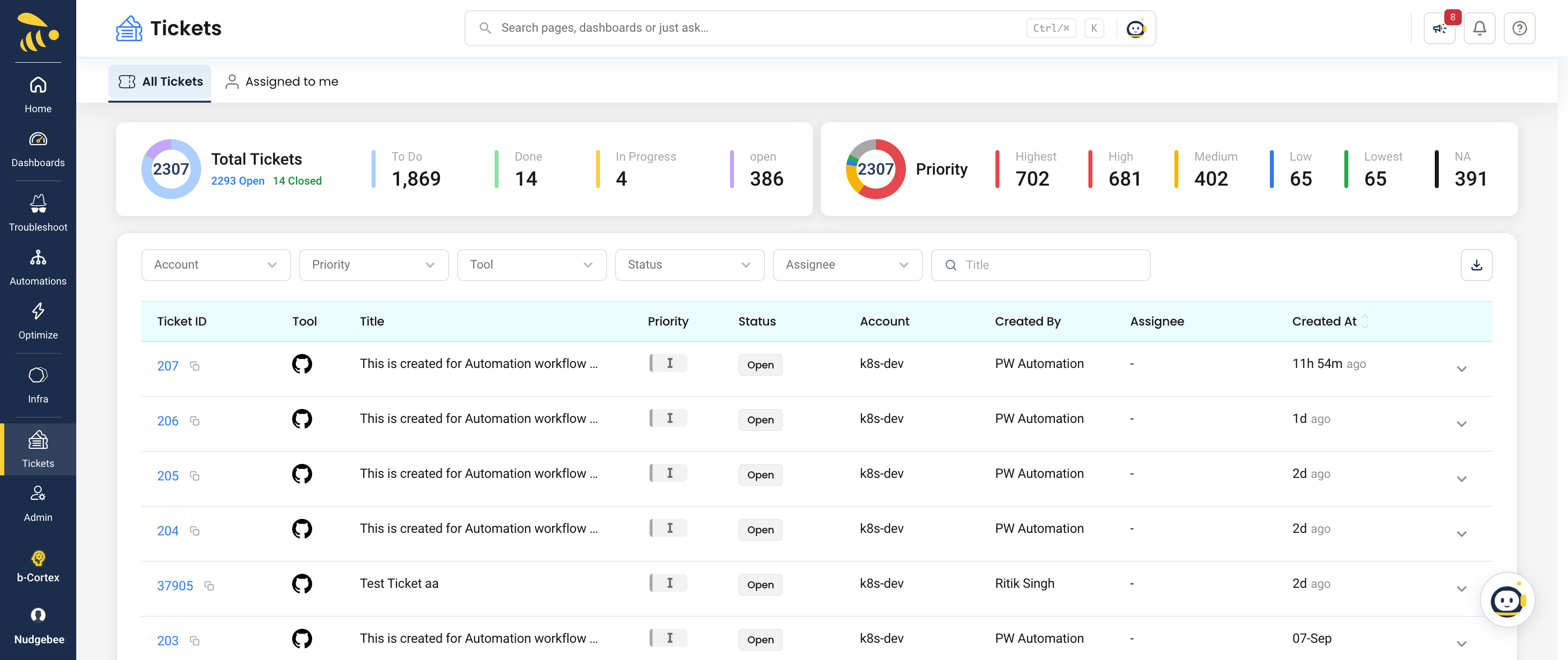
Tickets → All Tickets and Tickets → Assigned to me
NudgeBee raises tickets in the ticketing tool you already use — from events, recommendations, findings and log errors — and keeps a copy of each one so you can see them all in one place. The ticket itself lives in the external tool; NudgeBee tracks it and keeps its status in sync.
Connect a ticketing integration first. Supported tools: Jira, GitHub Issues, GitLab Issues, ServiceNow, PagerDuty, ZenDuty and Freshdesk.
The Tickets page
| Tab | Shows |
|---|---|
| All Tickets | Every ticket NudgeBee has raised for the accounts you can see |
| Assigned to me | Tickets whose assignee is exactly your NudgeBee login email |
Assigned to me compares the ticket's assignee with your login email exactly. A ticket assigned to you in the external tool under a different name or username won't appear there — use All Tickets and the Assignee filter instead.
Summary cards
- Total Tickets, with N Open and N Closed. A ticket counts as closed when its status is Done, Closed or Resolved; everything else counts as open.
- A status breakdown (To Do, Done, In Progress, open) and a Priority breakdown (Highest, High, Medium, Low, Lowest, NA).
Click a slice or a legend item to filter the list by that status or priority.
Filters and columns
Filters: Account, Priority, Tool, Status, Assignee (All Tickets only) and a Title search that applies when you press Enter. Clear All removes every filter, and the download button exports the list.
| Column | Meaning |
|---|---|
| Ticket ID | The external ticket's ID — click it to open the ticket in its tool, or copy it |
| Tool | Which ticketing tool it lives in |
| Title, Priority, Status | As held in the external tool. A ticket with no priority shows Critical |
| Account | The NudgeBee account it was raised for |
| Created By, Assignee | Who raised it and who it's assigned to |
| Created At | When it was created (sortable) |
Ticket details
Expand a row to open Ticket Details:
- Open in the external tool.
- Description — for GitHub, rendered as Markdown with issue references linked.
- Additional Details — Ticket Type, Source, Reference ID, Last Updated, Project Key and Account.
- Comments — read the thread and add a comment (Write a comment..., then Add Comment). This works for all seven tools.
Changing status or assignee
The Tickets page is read-only for status, priority and assignee — change them in the external tool, and NudgeBee picks the change up at the next sync. To change tickets automatically, use the ticket tasks in an Automation.
Creating a ticket
Create Ticket is offered wherever there is something to act on:
- events and grouped events (row menu and the triage status badge);
- logs, log patterns, sensitive-log findings, and API and log errors;
- Kubernetes recommendations (right-sizing, PVC, spot, unused volumes, abandoned workloads, best practices, CIS, cluster and Helm upgrades, certificates);
- security findings, cloud posture findings and VM vulnerabilities;
- the Optimize pages and cloud recommendations;
- an investigation.
The Create Ticket dialog asks for:
| Field | Meaning |
|---|---|
| Select Ticket Config | Which connected ticketing integration to use |
| Project | Named for the tool: Select Jira Project, Select Github Repository, Select GitLab Project, Select Table (ServiceNow), Select PagerDuty Service, Select ZenDuty Service or Select Freshdesk Group |
| Select Issue | The issue type |
| Priority / Urgency | Priority (Jira, Freshdesk) or Urgency (PagerDuty, ZenDuty) sets the ticket's priority. For ServiceNow, a read-only Severity is set from Impact and Urgency |
| Subject, Description | Pre-filled from the event or recommendation; edit as needed |
You need read access to the account, or permission to write tickets. On events, grouped events and VM vulnerabilities, the action reads Create Ticket · requires account access when you don't have it.
No duplicates. If a ticket already exists for the same item in the same ticket integration and project (the project is compared only when one is given), NudgeBee adds a comment to it instead of opening a new one, and tells you Existing ticket found, Added comment successfully with a link. If the external tool created the ticket but NudgeBee couldn't record it, you'll see a warning — don't retry, or you'll create a duplicate.
Once an event has a ticket, the triage status badge no longer offers Create Ticket.
Tickets can also be raised automatically by Automations and by Auto Optimize rules with ticket creation turned on.
Status sync
NudgeBee checks each open ticket's status, priority and assignee in the external tool every hour. There is no webhook — a change in the tool shows up in NudgeBee within an hour. Tickets in a final state (resolved, closed, done, completed, rejected, cancelled, declined) are no longer checked.
What closing a ticket does
When a ticket raised for a recommendation reaches a final state:
| Ticket ends as | The recommendation becomes |
|---|---|
| Resolved, Closed, Done or Completed | Closed |
| Rejected, Cancelled or Declined | Open again |
Events are not changed — an event's triage status is managed separately. See Alert State Management.