Home
Home → Overview → Home
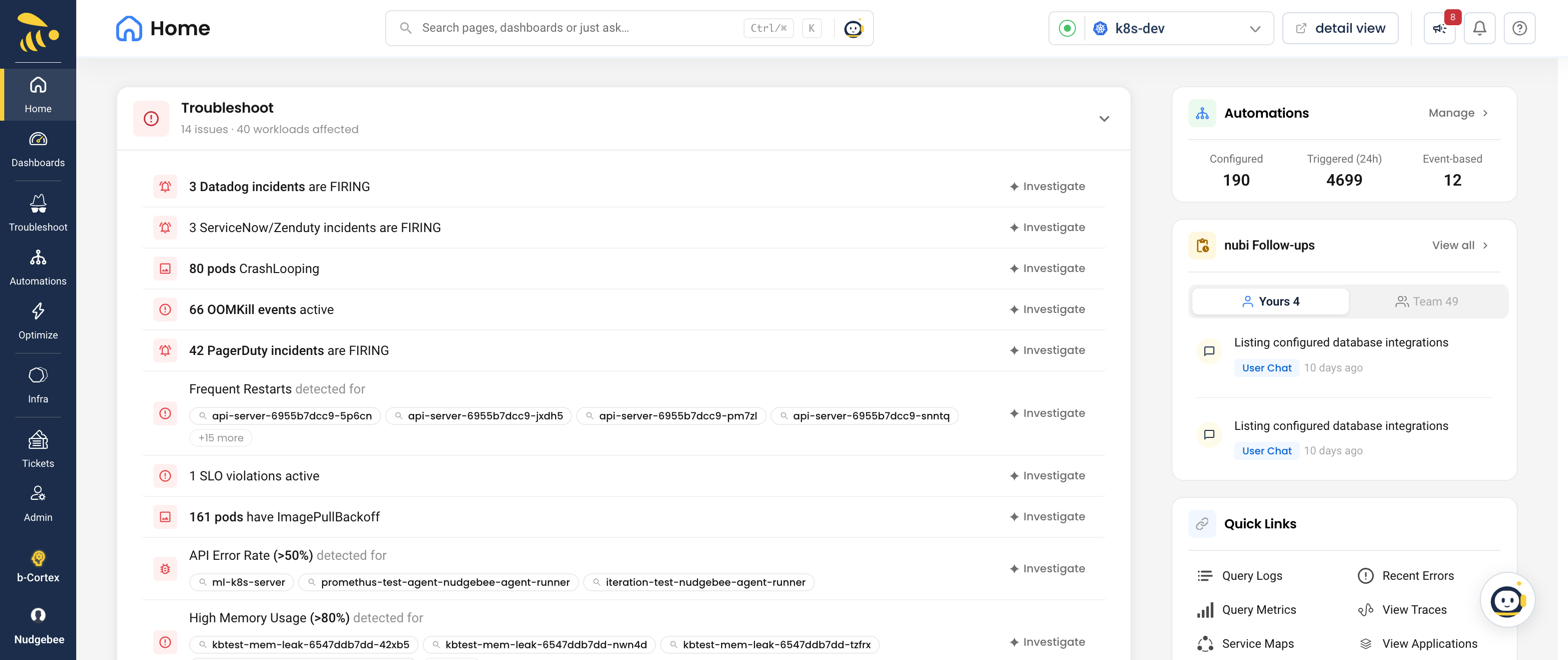
Home is the starting page for one account: what needs attention, what you can save, and what is running on its own. Pick the account with the account picker in the header — every card on the page is for that account.
The Home menu also has:
- Account Overview — every connected cluster, cloud account and self-hosted VM fleet on one page. See Kubernetes.
- Dashboard List and Application Grouping — see Custom Dashboards and Application Grouping.
Setup progress
Until setup is complete, users who can manage setup see a banner at the top showing what is left to connect. View connections opens the connections list, Not needed… hides it for good, and Snooze hides it for 24 hours.
Cards
| Card | Shows | Footer |
|---|---|---|
| Troubleshoot | Open issues — N issues · M workloads affected. On self-hosted VM accounts it appears only while alerts are firing | View all issues |
| Optimize | The top recommendations, with savings. On a self-hosted VM account it shows vulnerabilities instead. Not shown for Cloud Foundry | View all recommendations |
| Security & Compliance | Kubernetes only: critical CVEs, certificates that are expiring or expired, and ops issues, each with Review | View security dashboard |
Each row has an action named for what it is: Investigate (troubleshooting and performance), Secure Now (security), Configure (configuration), Optimize, Upgrade (infrastructure upgrades) or View Details.
On the right:
- Automations — Configured, Triggered (24h) and Event-based counts, each clickable, plus Manage.
- VM Fleet — on self-hosted VM accounts: virtual machines, agents connected and open vulnerabilities.
- NuBi Follow-ups — conversations waiting on an answer from you (Yours) or your team (Team), with View all. Hidden when nothing is waiting.
- Quick Links — shortcuts for the account type, such as Query Logs, Recent Errors, Query Metrics, View Traces, Service Maps, View Applications, View Pods, Security, Troubleshoot and Optimize. For users with a custom role that lacks the module, the link is shown disabled.
When a card is empty
What an empty card means depends on how long the account has been connected:
- In the first 48 hours the cards say data is still arriving — for example Just added this account? … Give me about an hour to generate insights. Optimize recommendations get better after a day to a week of trends, and Security says All quiet on the security front. On self-hosted VM accounts, Optimize shows No Critical or High severity vulnerabilities open on this fleet. however long the account has been connected.
- After 48 hours an empty card is treated as a setup problem — for example It's quiet… a little too quiet. or No scans, certificates, or findings have come through. Check the account's Agent Health and integrations.
Related
- Kubernetes — Account Overview and the cluster pages
- Custom Dashboards
- Application Grouping
- Using the Chat