Configuring Triggers
Triggers define how and when a workflow starts. A workflow can have one or more trigger nodes, and the workflow runs whenever any of them fire.
Click a trigger node on the canvas to open the Trigger Configuration sidebar. The fields you see depend on the trigger type. Trigger nodes with invalid configuration display a yellow alert icon — hover over the node to see which rule failed. A workflow cannot be activated while any of its trigger nodes is invalid.
Trigger Types Reference
| Trigger Type | Description | Key Configuration |
|---|---|---|
| Manual Trigger | Start workflow on demand by clicking Run | Input parameters (JSON, optional) |
| Schedule | Run workflow on a recurring time-based schedule | Cron expression, overlap policy, catchup window |
| Webhook | Run workflow when an HTTP request hits a generated URL | Integration name, optional filter expression |
| Event Trigger | Run workflow when a matching platform event is detected | At least one of: event type, cluster, namespace, source, priority, or advanced expression |
| Optimization Trigger | Run workflow when a new optimization recommendation matches | Cluster, category, rule name (all optional) |
Manual Trigger
Runs the workflow when you click Run in the editor or select Manual run from the listing page.
- Input Parameters (JSON) (optional) - A JSON object of parameters made available to tasks at runtime as
Inputs.<key>. Arrays and other non-object JSON values are rejected. - Maximum length: 2000 characters.
- Leave the field as
{}if no inputs are needed.
Schedule Trigger
Runs the workflow automatically on a recurring schedule.
-
Cron Expression (required) - Standard 5-field cron format (
minute hour day month weekday). Maximum 100 characters. -
Overlap Policy - What happens when a new run is due while the previous run is still active. The UI label is shown to users; the stored value is what appears in the saved workflow JSON:
UI Label Stored Value Behavior Skip (default) SkipSkip the new run Buffer One BufferOneQueue one pending run Buffer All BufferAllQueue all pending runs Allow All AllowAllRun all concurrently Cancel Other CancelOtherCancel the previous run Terminate Other TerminateOtherTerminate the previous run -
Catchup Window - How far back to look for missed runs after an outage. Use a single-unit duration matching the regex
^\d+[smhd]$— e.g.60s,10m,1h,7d. Default:60s. Compound durations like1h30mare not accepted.
All scheduled times use the UTC timezone.
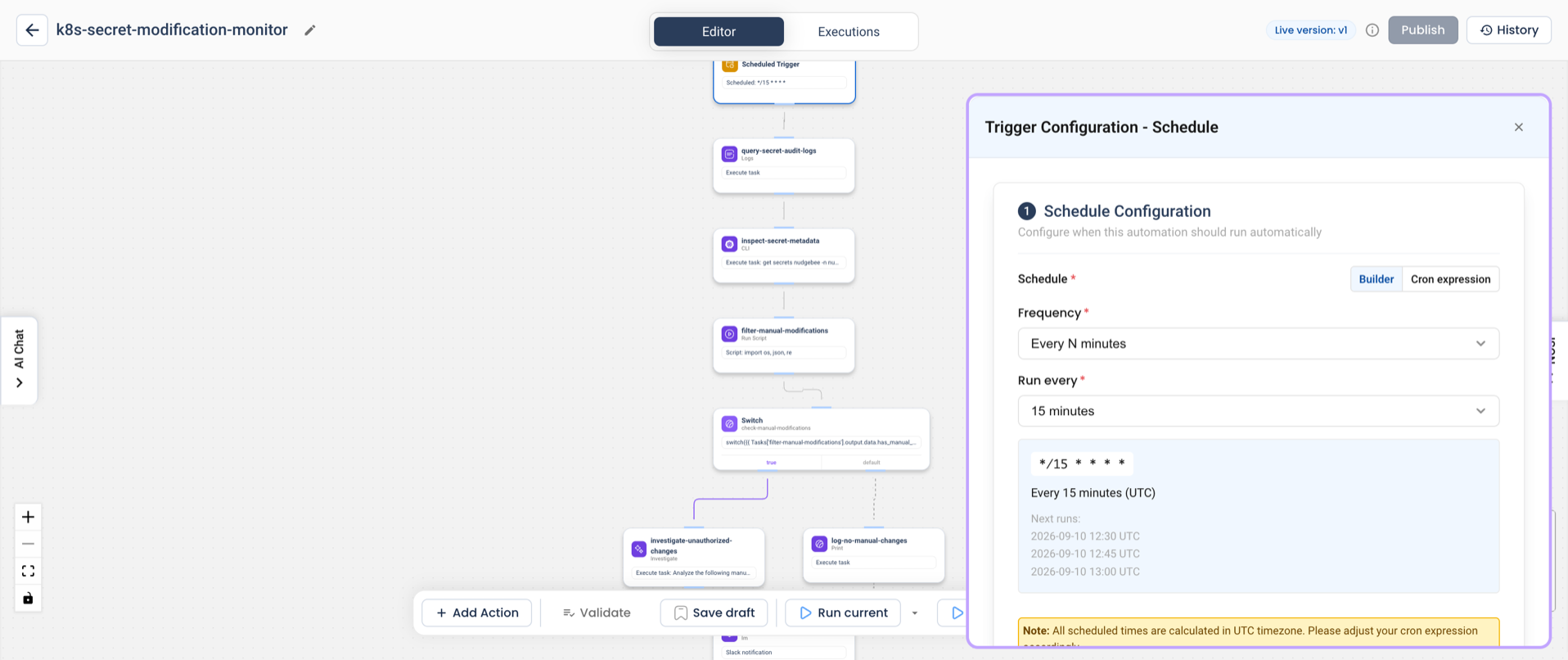
Common cron examples:
| Expression | Schedule |
|---|---|
0 9 * * 1-5 | Every weekday at 9:00 AM |
*/15 * * * * | Every 15 minutes |
0 0 * * 0 | Every Sunday at midnight |
0 12 1 * * | First day of every month at noon |
Webhook Trigger
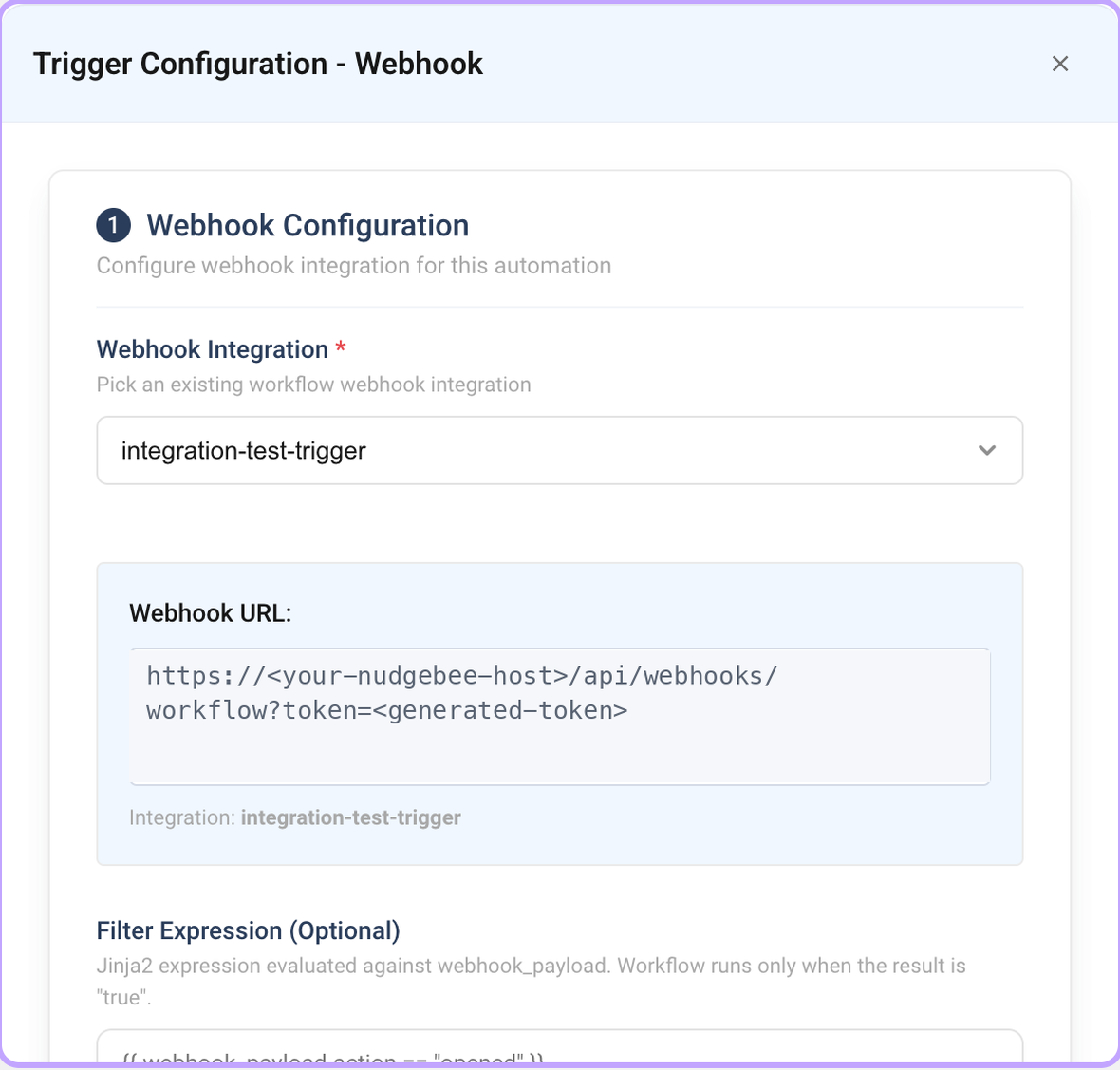
Runs the workflow when an HTTP request is sent to a generated webhook URL.
- Integration Name (required) - The
workflow_webhookintegration that authenticates and routes incoming requests. Must match^[a-zA-Z0-9._-]+$(letters, numbers, dots, hyphens, underscores). Maximum 200 characters. - Filter Expression (optional) - A template expression evaluated against the incoming request body. The workflow runs only if it renders to
trueor1. The request body is available aswebhook_payload. Maximum 500 characters.
Setup:
- Enter an Integration Name.
- Once the integration is linked, the generated webhook URL is displayed - click the copy icon to copy it.
- Send HTTP requests to this URL to trigger the workflow.
Filter expression examples:
| Expression | Behavior |
|---|---|
{{ webhook_payload.action == "opened" }} | Only trigger when the payload's action is opened |
{{ webhook_payload.repository.name == "my-repo" }} | Only trigger for a specific repository |
A webhook trigger requires a workflow_webhook integration configured in Settings → Integrations. If you haven't set one up, the sidebar will guide you to create one. The integration must be linked to the workflow before the webhook URL is generated.
Event Trigger
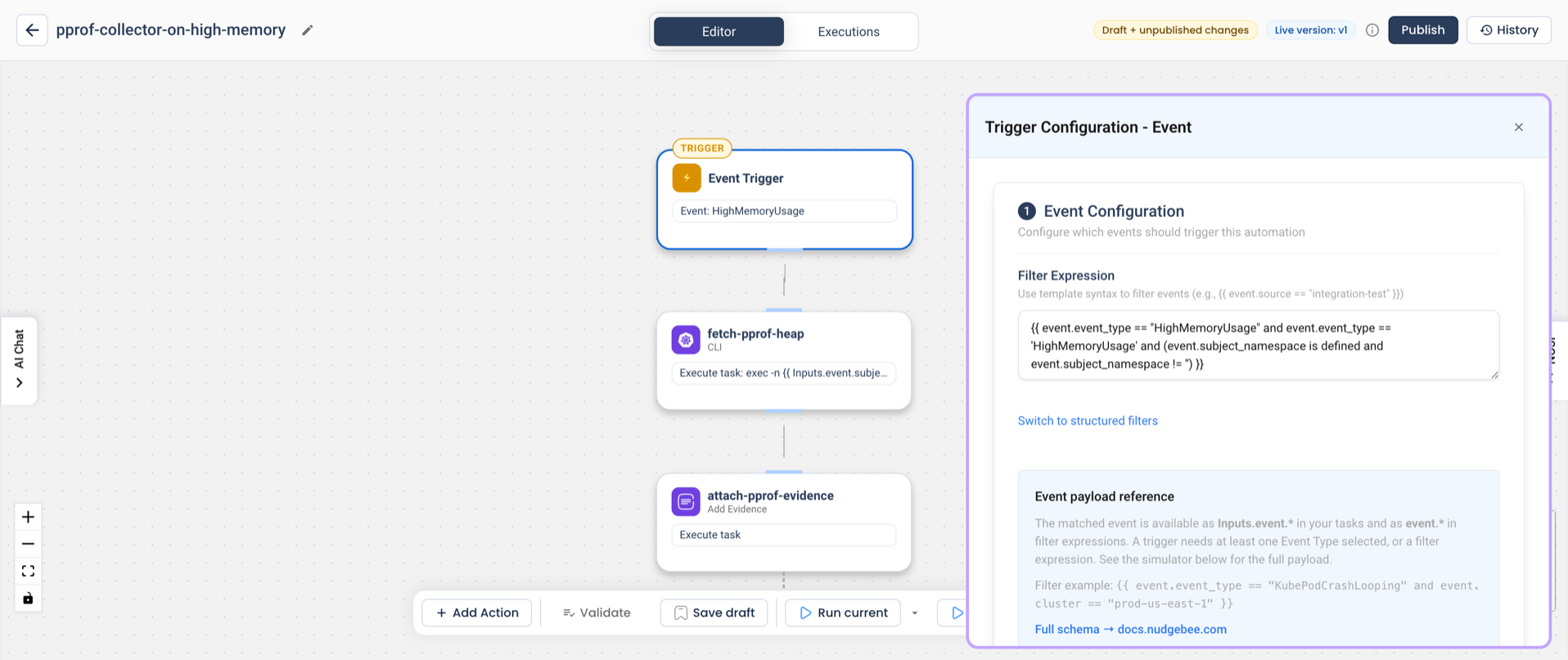
Runs the workflow when a matching platform event is published - for example a recommendation, an alert, or a finding. See Event Payload Schema for the fields available on every event.
Filters
You configure an Event Trigger using structured filters. At least one filter must be set, otherwise saving fails with:
Set at least one filter (event type, cluster, namespace, source, priority, or advanced expression)
Available structured filters (all optional individually, but at least one is required overall):
- Event Type / Aggregation Key - The class of event to listen for, selected from the dropdown.
- Cluster - Restrict to events from a specific Kubernetes cluster. The dropdown is grouped by cloud provider.
- Namespace - Restrict to events from a specific Kubernetes namespace.
- Source - Restrict to events from a specific source system (e.g.
prometheus). - Priority - Restrict by severity level. One of:
HIGH,MEDIUM,LOW,INFO,DEBUG.
When multiple structured filters are set, they are combined with logical AND when compiled to the saved Jinja params.filter. For example, setting Priority=HIGH and Source=prometheus produces:
{{ event.priority == "HIGH" and event.source == "prometheus" }}
The Event Trigger sidebar auto-saves your changes, but only after the "at least one filter" rule passes. Until then your edits are kept in the form but not persisted to the workflow.
Switching to advanced mode
Click Switch to advanced filter expression to replace the structured fields with a raw template expression over the full event payload. Use advanced mode when you need conditions the structured fields can't express - OR-logic, nested labels, non-equality comparisons, or string matching.
- The expression must render to
trueor1for the workflow to run. - The event is available as
event. - Maximum 500 characters.
- Switching back to structured mode works only if the parser can decompose the expression into the supported fields. Free-form expressions stay in advanced mode.
Advanced filter examples:
| Expression | Behavior |
|---|---|
{{ event.priority == "HIGH" }} | Only high-priority events |
{{ event.source == "prometheus" }} | Only events from Prometheus |
{{ event.labels.env == "prod" }} | Only events labeled env=prod |
Legacy migration
Workflows created before structured filters used a single params.event_type field. When you re-open such a trigger, the old value is automatically migrated to a structured Event Type filter — no manual action is required.
Optimization Trigger
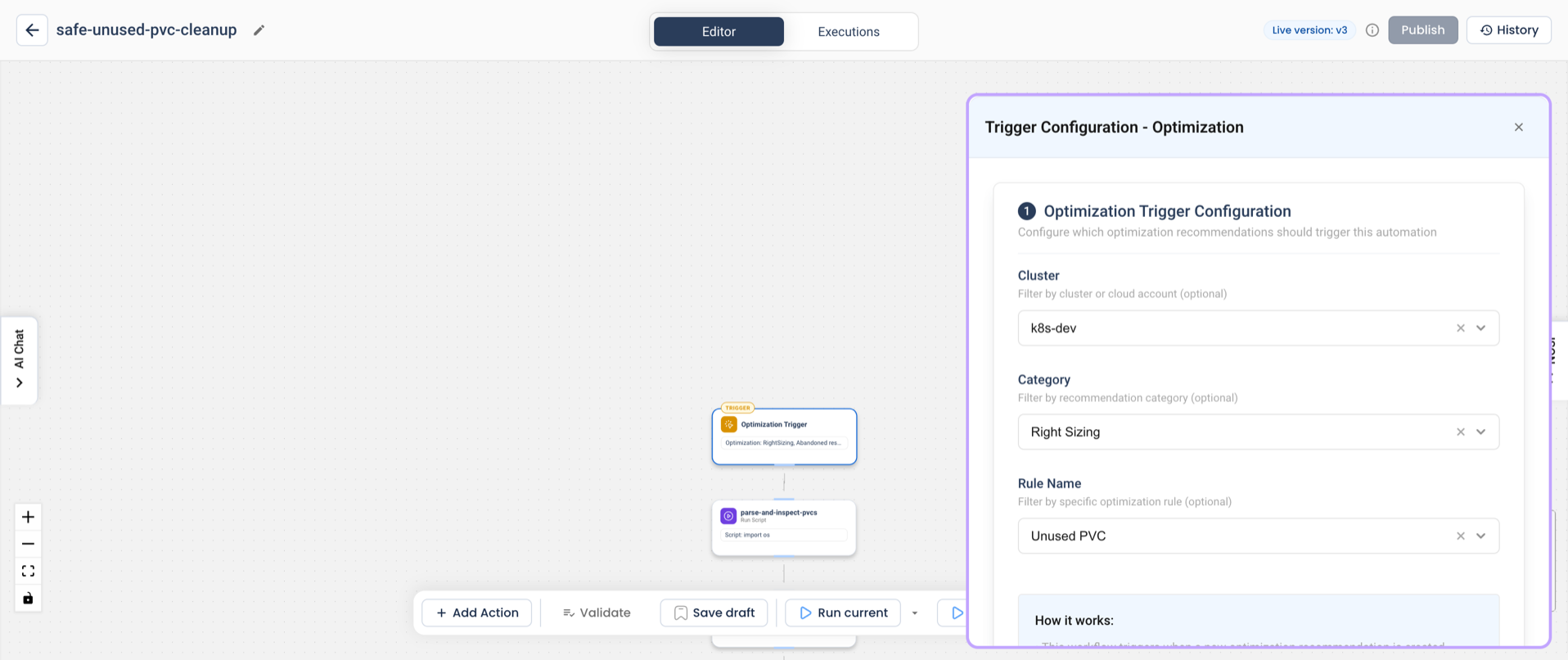
Runs the workflow when a new optimization recommendation is created and matches the configured filters. All fields are optional; an empty configuration triggers the workflow on every recommendation.
- Cluster (optional) - Filter by Kubernetes cluster. Dropdown grouped by cloud provider.
- Category (optional) - Filter by recommendation category. One of:
PodRightSizingRightSizingK8sInstanceRecommendationK8sSpotRecommendationConfigurationSecurityK8sMissingAttribute
- Rule Name (optional) - Filter by specific optimization rule. One of:
vertical_rightsizehorizontal_rightsizepvc_rightsizecontinuous_rightsizereplica_right_sizingSpot instance recommendationAbandoned resource
The recommendation payload is exposed in the workflow as event — use {{ event.cluster }}, {{ event.category }}, etc. in trigger expressions, and {{ Inputs.event.cluster }} inside downstream task params (see Event Payload Schema).
Event Payload Schema
The fields below describe platform event payloads; availability depends on the event source. Optimization recommendations use a different payload, documented in Optimization-Triggered Automation. Inspect the actual execution input before referencing optional fields.
| Field | Type | Notes |
|---|---|---|
event_type | string | Event class / aggregation key |
source | string | Source system (e.g. prometheus) |
cluster | string | Kubernetes cluster |
subject_namespace | string | Kubernetes namespace |
subject_name | string | Kubernetes object name |
priority | enum | HIGH, MEDIUM, LOW, INFO, DEBUG |
status | string | Event status |
labels | object | Arbitrary key/value labels |
Access patterns:
- In trigger filter expressions - access fields directly on
event:{{ event.priority == "HIGH" }}{{ event.labels.env == "prod" }} - In downstream task parameters - the same payload is exposed as
Inputs.event:{{ Inputs.event.cluster }}{{ Inputs.event.subject_name }}