ClickHouse
Connect a ClickHouse cluster so NudgeBee can query it from workflows and analyse its health. ClickHouse is also used as a trace backend — if you are storing OpenTelemetry spans in ClickHouse, see OTel ClickHouse instead; that is a separate observability integration.
Prerequisites
- A ClickHouse user NudgeBee can authenticate as, with read access to the databases you want queried and to the
systemdatabase. - Either the NudgeBee agent running in the same cluster as ClickHouse (K8s mode), or a reachable Proxy Agent (Proxy Agent mode).
Step 1: Open the Configuration Form
Navigate to Admin > Integrations > Databases and select Clickhouse, then click Add Clickhouse Account.

Step 2: Choose a Connection Mode
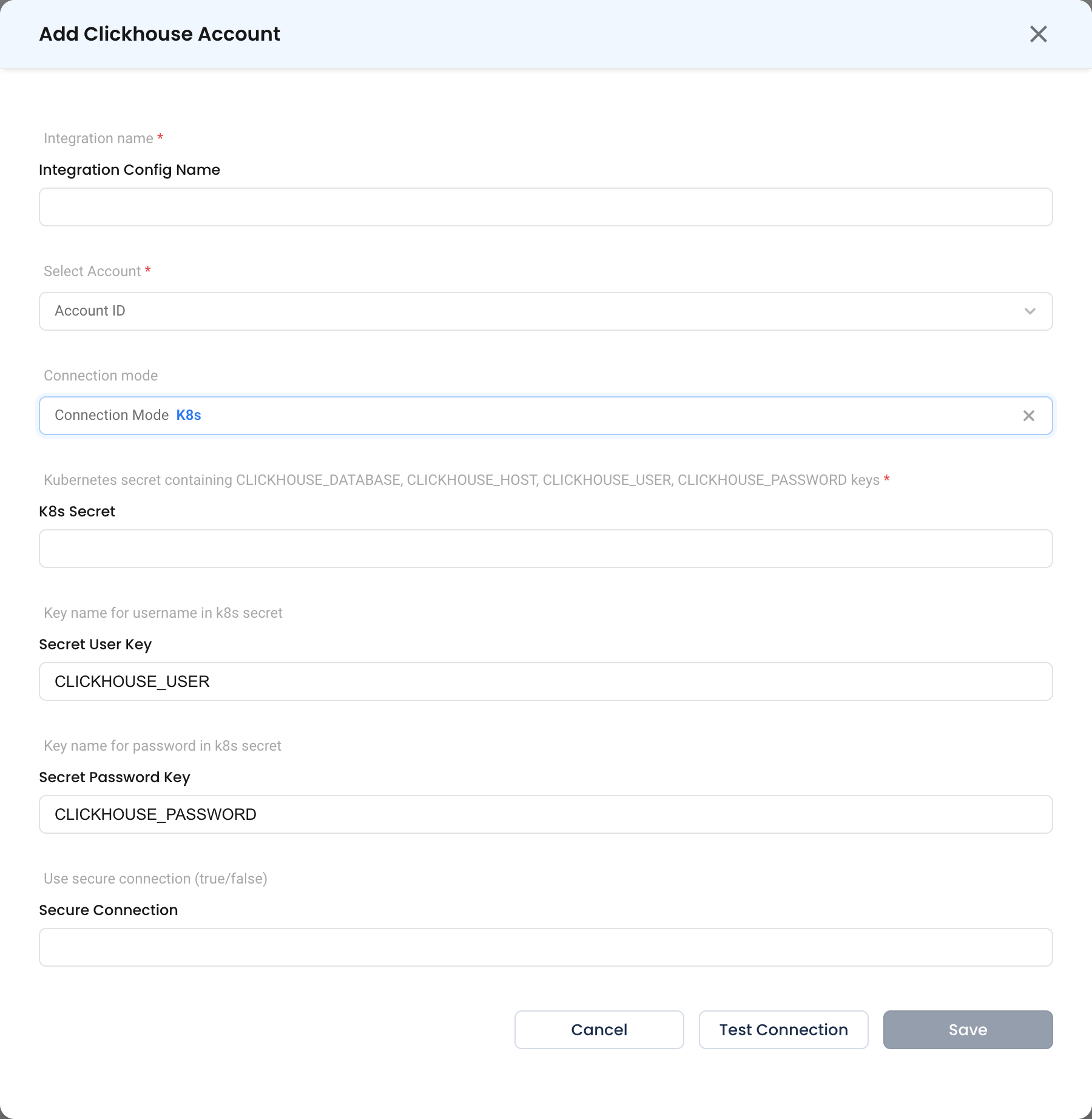
K8s
- Kubernetes secret containing CLICKHOUSE_DATABASE, CLICKHOUSE_HOST, CLICKHOUSE_USER, CLICKHOUSE_PASSWORD keys * (Required)
| Key | Value |
|---|---|
CLICKHOUSE_HOST | Hostname or service DNS name, e.g. clickhouse.databases.svc.cluster.local |
CLICKHOUSE_DATABASE | Database to connect to |
CLICKHOUSE_USER | Username |
CLICKHOUSE_PASSWORD | Password |
- Secret User Key — The key inside the secret that holds the username. Defaults to
CLICKHOUSE_USER. Change it if the secret was created by a chart that uses different key names. - Secret Password Key — The key that holds the password. Defaults to
CLICKHOUSE_PASSWORD. - Secure Connection —
trueorfalse. Settruewhen the server expects TLS (native protocol port9440rather than9000).
tip
The two key-name overrides exist because ClickHouse Helm charts rarely agree on secret key naming. If the operator that installed ClickHouse created a secret with, say, admin-password, point Secret Password Key at it rather than copying the value into a new secret.
kubectl create secret generic nudgebee-clickhouse \
  --namespace databases \
  --from-literal=CLICKHOUSE_HOST=clickhouse.databases.svc.cluster.local \
  --from-literal=CLICKHOUSE_DATABASE=default \
  --from-literal=CLICKHOUSE_USER=nudgebee \
  --from-literal=CLICKHOUSE_PASSWORD='<YOUR_PASSWORD>'
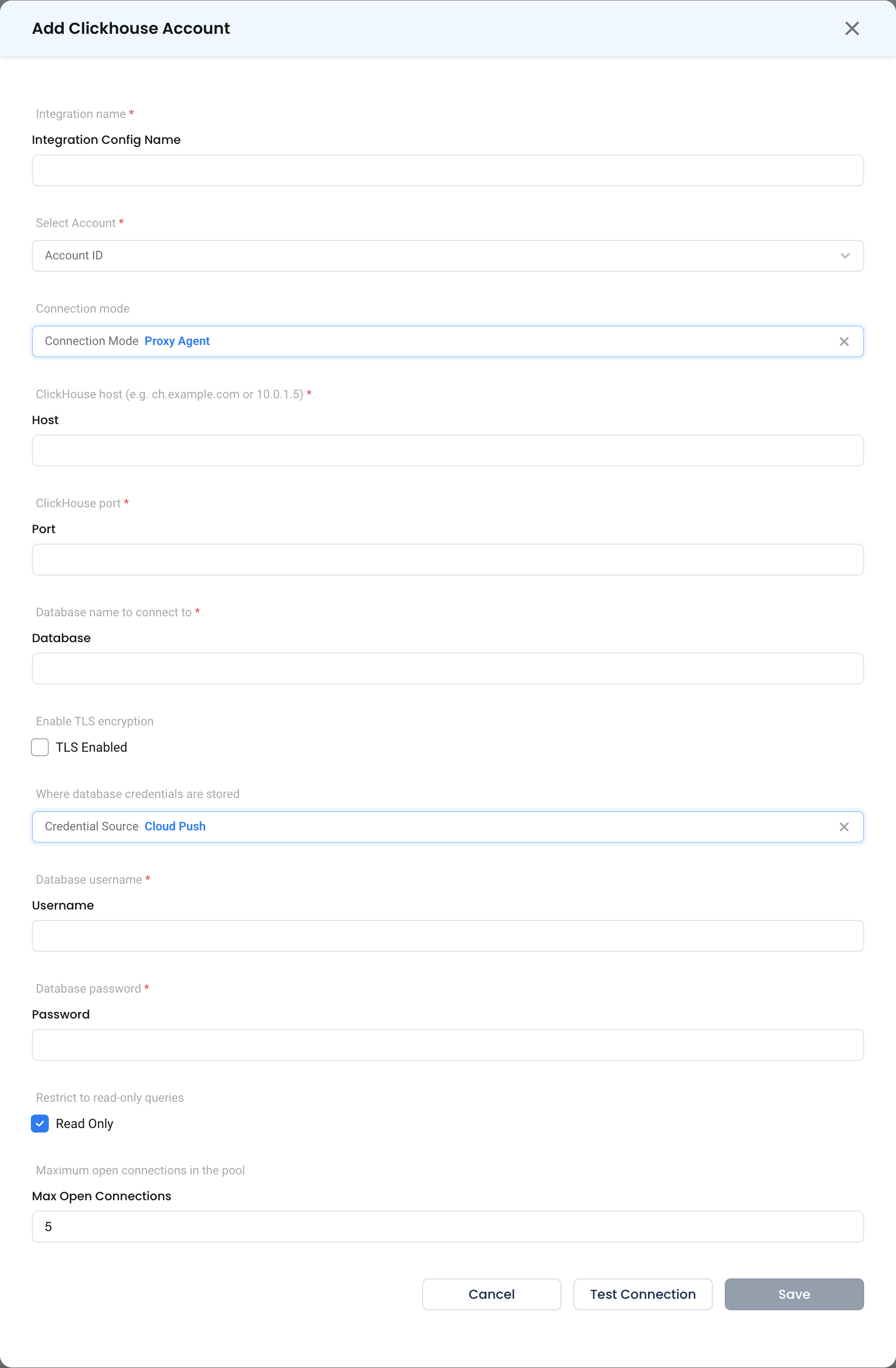
Proxy Agent
- ClickHouse host * (Required) — Hostname or IP, e.g.
ch.example.comor10.0.1.5. - ClickHouse port * (Required) — Native protocol port, typically
9000, or9440with TLS. - Database name to connect to * (Required)
- TLS Enabled — Turn on for connections crossing a network boundary.
- Credential Source, Database username *, Database password *, Read Only, Maximum open connections in the pool — see common fields.
Step 3: Test and Save
Click Test Connection, then Save.
What Gets Connected
| Capability | What NudgeBee reads |
|---|---|
| Health check | system.processes for running queries and memory use, system.parts for table sizes and part counts, system.mutations for unfinished ALTERs, system.dictionaries for dictionary load state |
| Schema introspection | SHOW TABLES, DESCRIBE TABLE, system.tables and system.columns |
| Workflow queries | Any SQL you supply via dbms.query with dbms_type: clickhouse |
Verify the Integration
- Click Test Connection on the form — it should succeed before you save.
- In a workflow, run a
dbms.querytask withSELECT 1.
Troubleshooting
See the shared troubleshooting table first. ClickHouse-specific cases:
| Symptom | Likely Cause | Fix |
|---|---|---|
| Authentication fails in K8s mode | The secret uses different key names | Set Secret User Key and Secret Password Key to match the keys actually in the secret. |
| Connection refused on port 9000 | The server only accepts TLS | Use port 9440 and enable Secure Connection (K8s mode) or TLS Enabled (Proxy Agent mode). |
| Connection succeeds but every query fails | Connected to the HTTP port (8123) instead of the native port | Use the native protocol port, 9000 or 9440. |
Not enough privileges on system tables | The user cannot read the system database | Grant SELECT on system.* to the NudgeBee user. |