Microsoft SQL Server
Connect a Microsoft SQL Server instance so NudgeBee can analyse its health and query it from workflows.
SQL Server is always reached through the Proxy Agent — there is no in-cluster secret mode. Forager must be able to open a TCP connection to the instance.
Prerequisites
- A Proxy Agent that can reach the instance.
- A SQL Server login NudgeBee can authenticate as, with read access to the database and to the dynamic management views.
Recommended Grants
-- In master: create the login and grant the server-level permission to it.
USE [master];
CREATE LOGIN nudgebee WITH PASSWORD = '<YOUR_PASSWORD>';
GRANT VIEW SERVER STATE TO nudgebee;

-- In each database you want NudgeBee to query:
USE [<your_database>];
CREATE USER nudgebee FOR LOGIN nudgebee;
ALTER ROLE db_datareader ADD MEMBER nudgebee;
VIEW SERVER STATE is a server-level permission, so it must be granted in master to the login, not in a user database to the database user. Running the GRANT after a USE [<your_database>] fails.
VIEW SERVER STATE is what makes the sys.dm_exec_* views readable — sys.dm_exec_requests, sys.dm_exec_sessions, sys.dm_exec_query_stats and sys.dm_exec_sql_text are all covered by it, and it is the only server-level permission NudgeBee needs. Without it, session and query analysis returns nothing.
db_datareader covers the application tables and the INFORMATION_SCHEMA lookups NudgeBee runs before querying an unfamiliar table. NudgeBee can target any database by name, so add the user to every database you want analysed; sys.databases is readable without an extra grant.
Step 1: Open the Configuration Form
Navigate to Admin > Integrations > Databases and select SQL Server, then click Add Mssql Account.

Step 2: Fill In the Connection
- MSSQL host — Hostname or IP, e.g.
db.example.comor10.0.1.5. For a named instance, use the host and set the port explicitly rather than thehost\instanceform. - MSSQL port — Defaults to
1433. - Database name to connect to — The database NudgeBee opens.
- TLS Enabled — Turn on for connections crossing a network boundary. Azure SQL requires it.
- Credential Source, Database username *, Database password *, Read Only, Maximum open connections in the pool — see common fields.
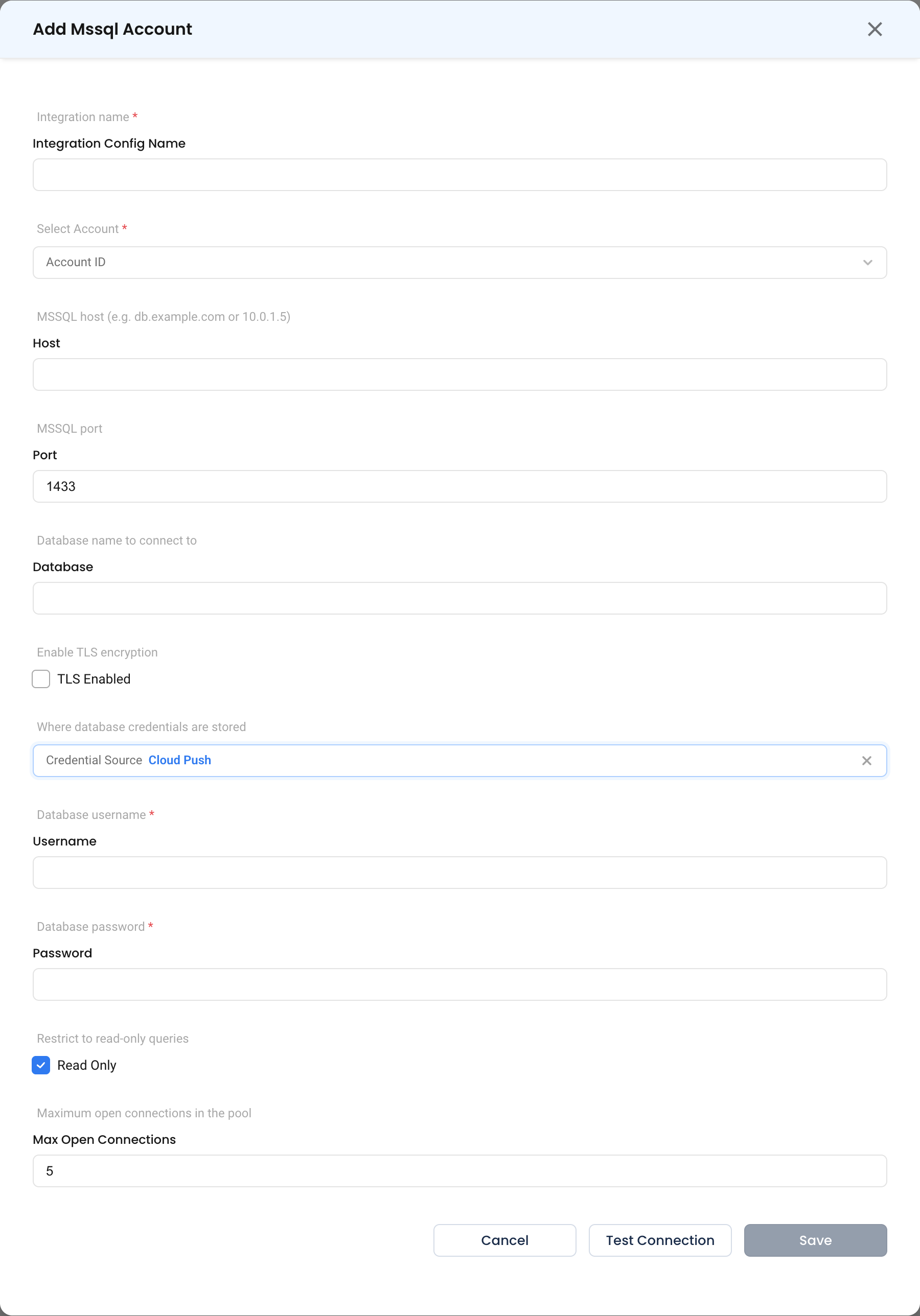
Step 3: Test and Save
Click Test Connection, then Save.
What Gets Connected
| Capability | What NudgeBee reads |
|---|---|
| Health check | sys.dm_exec_sessions, sys.dm_exec_requests, blocking and wait statistics |
| Slow queries | sys.dm_exec_query_stats joined to statement text |
| Workflow queries | Any SQL you supply via dbms.query with dbms_type: mssql |
Verify the Integration
- Click Test Connection on the form — it should succeed before you save.
- Ask NuBi to check the health of the database by the name you gave it.
- In a workflow, run a
dbms.querytask withSELECT 1.
Troubleshooting
See the shared troubleshooting table first. SQL Server-specific cases:
| Symptom | Likely Cause | Fix |
|---|---|---|
| Login succeeds, management views empty | Missing VIEW SERVER STATE | GRANT VIEW SERVER STATE TO nudgebee; |
| Cannot reach a named instance | SQL Browser resolution is not used | Set the instance's static TCP port in MSSQL port instead of relying on the instance name. |
Login failed for user on Azure SQL | Username needs the server suffix, or TLS is off | Use user@servername where required, and enable TLS Enabled. |
| Certificate validation errors | Self-signed server certificate | Install a trusted certificate on the instance, or terminate TLS where Forager can validate it. |