Action: Execute Bash
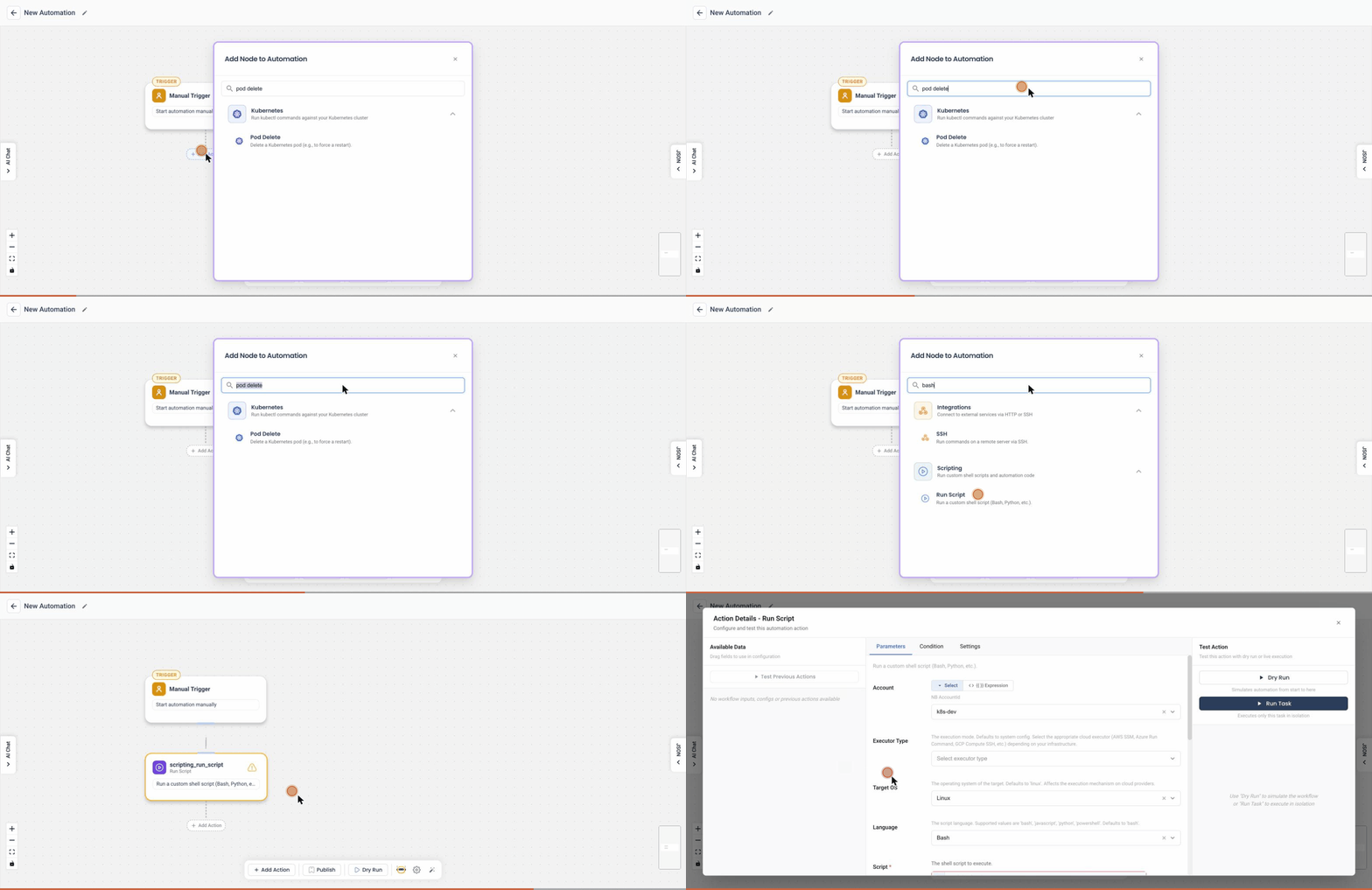
Add this action in the Automation builder: click Add Action, search for it, and configure its parameters.
Overview
The Execute Bash action in the Kubernetes Automation Tool allows users to execute custom shell scripts on their Kubernetes resources. This action can be performed in two modes: Ephemeral Container and Dedicated Pod.
User Inputs
The following user inputs are required to configure the Execute Bash action:
-
Shell Script:
- Text Box: Enter the shell script that needs to be executed.
-
Image Name:
- Text Box: Specify the container image on which the script will be run.
-
Execution Mode:
- Ephemeral Container: Runs the script in an ephemeral container within the same pod as the resource.
- Dedicated Pod: Creates a dedicated pod to run the script.
-
Secret (Dedicated Pod only):
- Optional: Provide any secrets required for the execution of the script in the dedicated pod.
Detailed Explanation
The Execute Bash action interface provides a straightforward way to run custom scripts on Kubernetes resources. Here’s how each part works:
-
Shell Script:
- Enter the desired shell script in the provided text box. This script will be executed based on the selected mode.
-
Image Name:
- Specify the container image (e.g.,
busybox) that will be used to run the script. This image must be available in your container registry.
- Specify the container image (e.g.,
-
Execution Mode:
- Ephemeral Container:
- When selected, the script runs in an ephemeral container within the same pod as the resource.
- This mode is useful for lightweight scripts that do not require significant resources or isolation.
- Dedicated Pod:
- When selected, a new dedicated pod is created to run the script.
- This mode is suitable for scripts that require isolation, additional resources, or specific configurations.
- Users can provide additional secrets required for the execution of the script in the dedicated pod.
- Ephemeral Container:
Example Use Case
Consider a scenario where a user needs to perform a custom health check or configuration update on a pod. By using the Execute Bash action, the user can write the required script and choose the appropriate execution mode based on the script’s requirements. This flexibility allows for efficient and effective management of Kubernetes resources through custom automation.
Notes
- Timeout: The script will be terminated if it takes more than 15 minutes to execute.
- Security: Ensure that the scripts and images used are from trusted sources to avoid security vulnerabilities.
This documentation provides a comprehensive guide to using the Execute Bash action, helping users effectively run custom scripts on their Kubernetes workloads.