Action: Vertical Rightsize
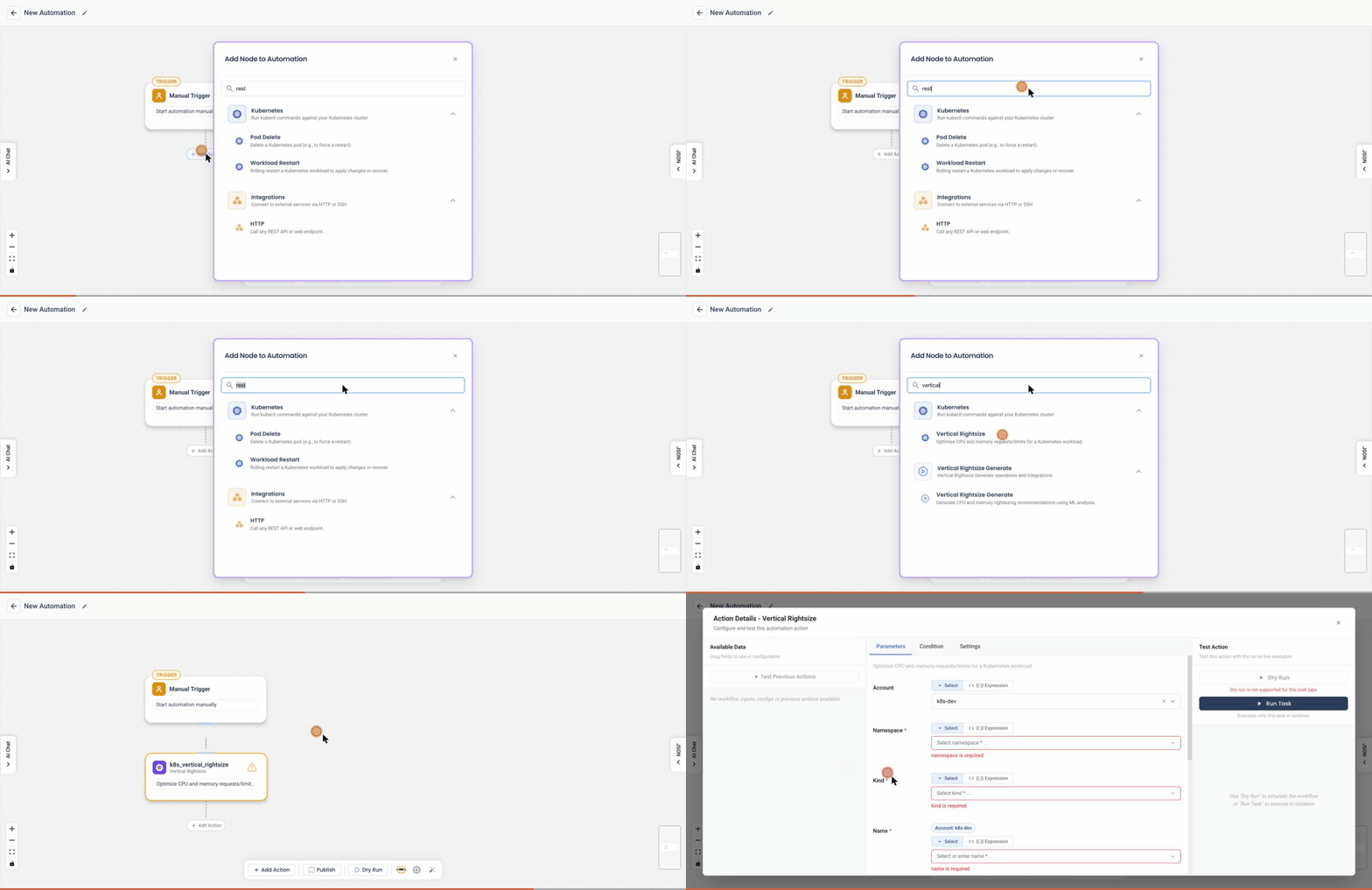
Add this action in the Automation builder: click Add Action, search for it, and configure its parameters.
Overview
The VerticalRightsize action in the Kubernetes Automation Tool allows you to scale the CPU and memory resources of a Kubernetes workload either up or down. This action ensures that your workloads have the optimal resource allocations based on their performance needs.
Video tutorial
Steps to create
-
Creating a New Runbook
- Accessing the autopilot app.
- Choosing between event type triggers and schedule type triggers.
-
Setting Up a Test Case
- Objective: Increase memory by 10% in case of an out of memory event.
- Selecting namespace and workload.
- Choosing the event trigger for out of memory events.
-
Configuring the Action
- Selecting "right size CPU and memory" action.
- Options to change memory, CPU, or both.
- Choosing to increase memory by 10% with a maximum limit.
- Option to remove the limit for CPU when the trigger occurs.
-
Naming and Creating the Runbook
- Naming the runbook and creating it.
-
Functionality of the Runbook
- Whenever an out of memory event occurs for the selected workloads, the runbook will automatically increase memory by 10%.
User Inputs
The following user inputs are required to configure the VerticalRightsize action:
-
Scale Direction:
- Toggle Button: Indicates whether the user wants to scale the resources up or down.
-
Resource Sections:
- The UI is divided into two sections: one for CPU and the other for Memory.
-
CPU Configuration:
- Increase/Decrease: Adjust the CPU by a percentage value.
- Minimum Value: Define the minimum CPU limit in millicores (m).
- Maximum Value: Define the maximum CPU limit in millicores (m).
- Remove Limit: Option to remove the CPU limit altogether.
-
Memory Configuration:
- Increase/Decrease: Adjust the memory by a percentage value.
- Minimum Value: Define the minimum memory limit in mebibytes (Mi).
- Maximum Value: Define the maximum memory limit in mebibytes (Mi).
-
Combination:
- You can choose to increase or decrease both CPU and memory simultaneously, or adjust them individually.
Detailed Explanation
The VerticalRightsize action interface is designed for ease of use and clarity. Here’s how each part works:
-
Scale Direction Toggle:
- Scale Down: Decreases the resource allocation.
- Scale Up: Increases the resource allocation.
-
CPU Section:
- Increase/Decrease: Use this to specify the percentage by which to increase or decrease the CPU resources.
- Minimum/Maximum Values: These fields allow you to set bounds for how low or high the CPU resources can be adjusted. This ensures that the resource allocation remains within a safe and efficient range.
- Remove Limit: Selecting this option removes the CPU limit, allowing the workload to use as much CPU as it needs.
-
Memory Section:
- Increase/Decrease: Use this to specify the percentage by which to increase or decrease the memory resources.
- Minimum/Maximum Values: These fields allow you to set bounds for how low or high the memory resources can be adjusted. This ensures that the resource allocation remains within a safe and efficient range.
Example Use Case
Consider a scenario where a particular application experiences increased load during peak hours and requires more CPU and memory. During off-peak hours, the resources can be scaled down to save costs. The VerticalRightsize action allows you to configure these adjustments dynamically based on real-time requirements.
By providing precise control over the resource allocation, the VerticalRightsize action helps in maintaining optimal performance and cost-efficiency in your Kubernetes environment.
This documentation provides a comprehensive guide to using the VerticalRightsize action, helping users effectively manage their Kubernetes resources.