Action: Notify
Add this action in the Automation builder: click Add Action, search for it, and configure its parameters.
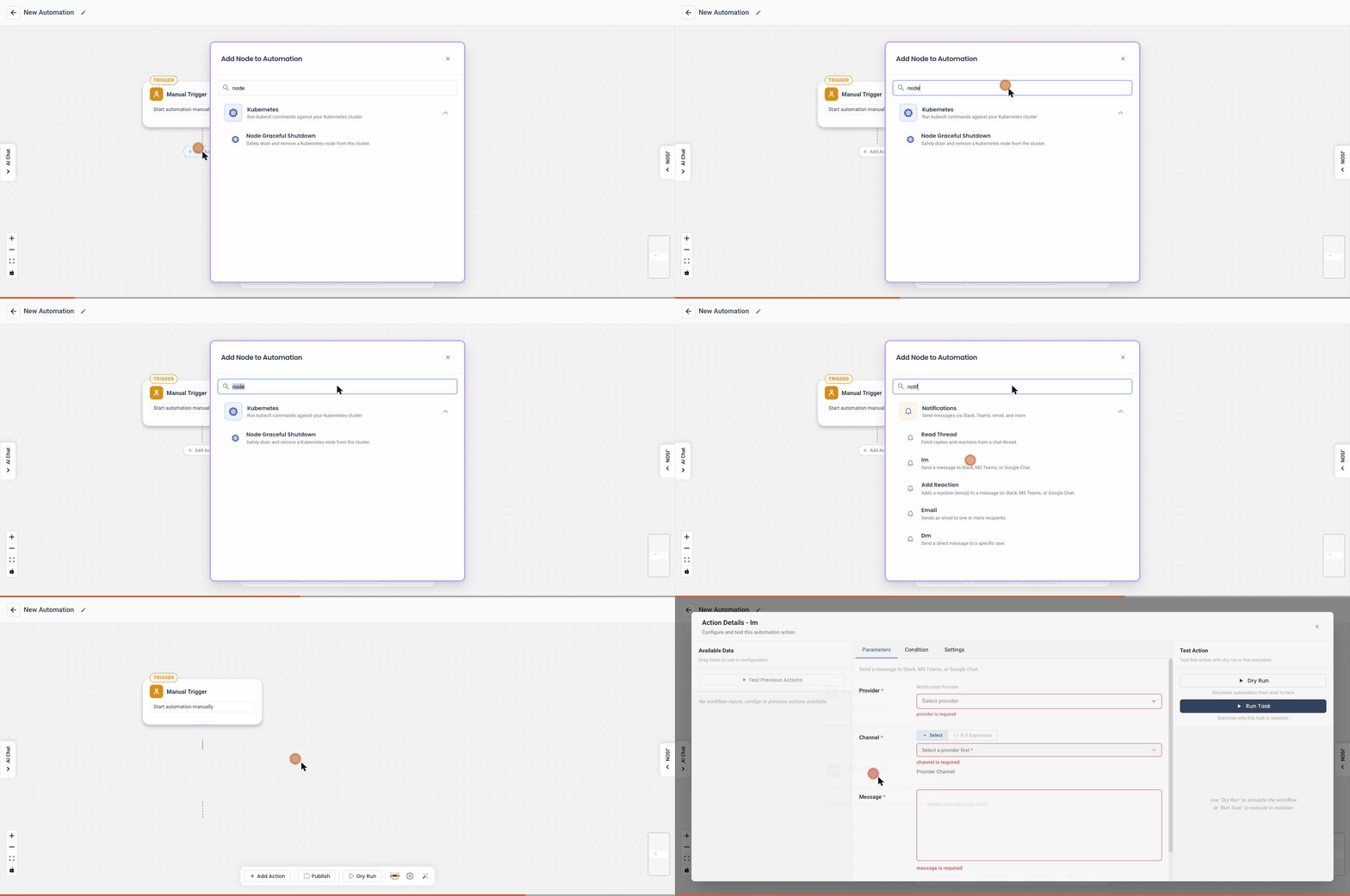
Overview
The Notify action in the Automation Platform allows users to send real-time notifications when a workflow is triggered. This action helps keep relevant teams informed about critical changes or events such as scaling down deployments, ticket creation, or incident detection.
User Inputs
The Notify action requires the user to configure the following:
- Body Message: A customizable message body that supports variable templating to dynamically insert runtime values.
- Messaging Tools: Users can choose one or more integrated messaging platforms (Slack, Microsoft Teams, Google Chat) to receive notifications.
Detailed Explanation
When a workflow reaches a point where a notification needs to be sent, the Notify action is triggered. The interface provides the following capabilities:
-
Message Body:
- Users can define the structure and content of the notification.
- The default message template is:
*Title*: Auto Runbook generated task notification for Resource
*Trigger Type*: {{ trigger_type }}
*Trigger Condition* : {{ trigger_condition }}
*Resources*: {{ applicable_resources }} - These template variables will be replaced with actual values at runtime:
{{ trigger_type }}: The event or condition type that initiated the workflow.{{ trigger_condition }}: Specific condition or threshold that was met.{{ applicable_resources }}: List of resources related to the event.{{ ticket_created_time }}: Time at which runbook was triggered{{ trigger_condition }}: Meta data about the trigger which initiated the workflow.{{ runbook_name }}: Name of the runbook.{{ runbook_link }}: link to the runbook.
-
Installed Messaging Tools:
- Slack: Select the Slack channel to which the message should be sent.
- Microsoft Teams: Choose the appropriate Team and Channel.
- Google Chat: Select the configured Google Chat space or channel.
Each messaging platform can be independently toggled on or off, allowing users to send notifications to one or more destinations simultaneously.
Example Use Case
Suppose a user has an automated workflow that scales down a deployment when CPU usage falls below a certain threshold. To inform the operations team, a Notify action can be added at the end of the workflow, which sends a message to a designated Slack channel and Google Chat room, providing details about the action taken and the resources affected.
This ensures transparency and keeps stakeholders aware of automation-triggered changes in real time.
Notes
- Ensure that messaging platforms are configured and authorized in the system before use. Click Configure Messaging Tool if setup is incomplete.
- Use templating wisely to make the messages more informative and actionable.
- The Notify action does not block the workflow; it runs asynchronously.
This documentation helps users understand and effectively use the Notify action to keep teams informed and responsive to automated operations.